Skip to content
TGWAY
Channels & Bots STEP 55 / 99

How to Find Mini Apps in Telegram

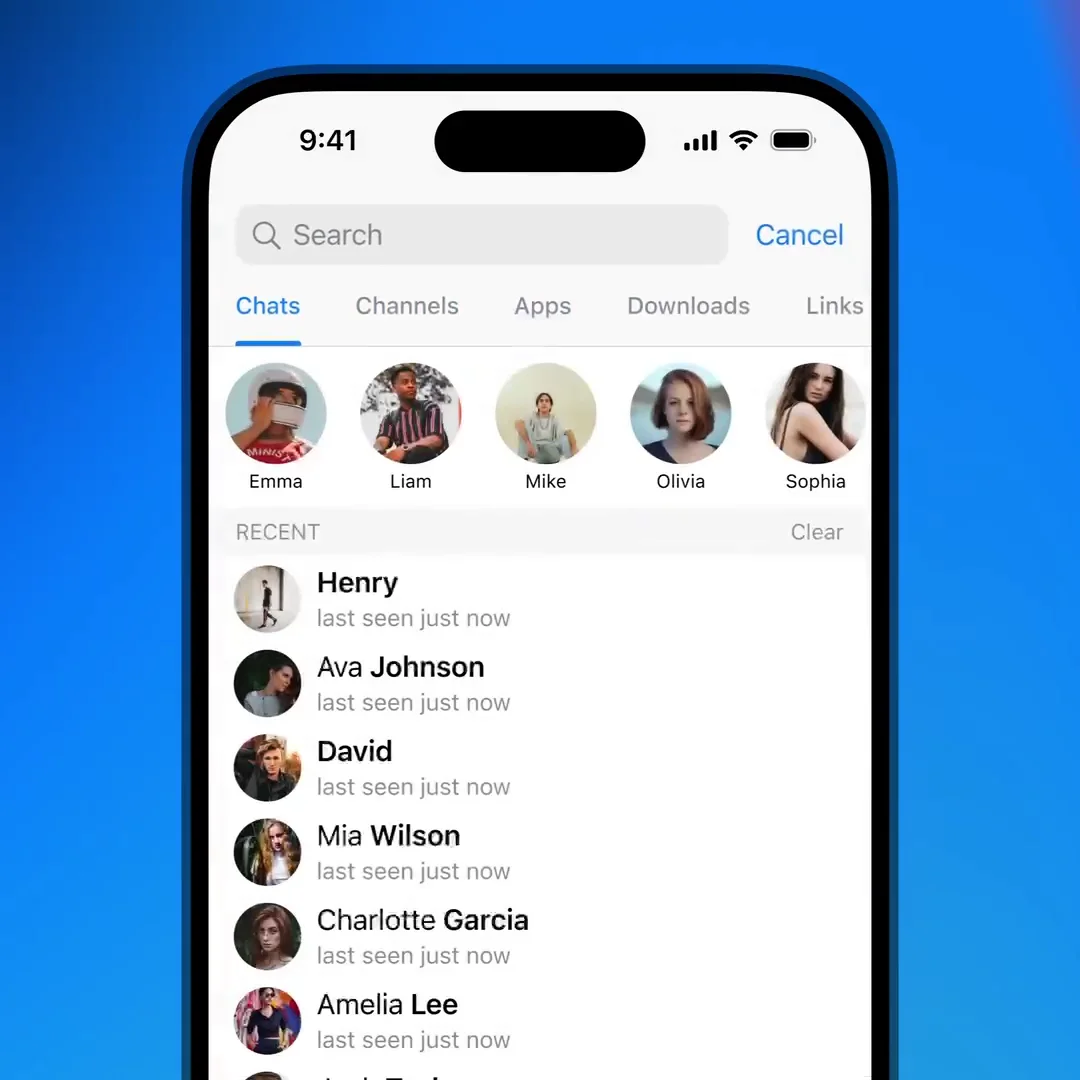
Search has a tab listing mini apps: the ones you have used, and others ranked by how many people use them. Opening one installs nothing.

  • LevelL1
In this article
  1. apps No install, and no uninstall either
  2. settings Using the directory
  3. At a glance
play_circle Video tip • Mini apps

Search has a tab listing mini apps: the ones you have used, and others ranked by how many people use them. Opening one installs nothing.

It is a directory of software with no download, no permissions screen and no uninstalling — which is the appeal and the thing to hold in mind.

What you will be able to do

  • check_circle Find mini apps you have not seen.
  • check_circle Return to one you used last month.
  • check_circle Judge one before opening it.
  • check_circle Know what the popularity figure means.
play_circle Official Telegram video short — finding mini apps
1080p clip from @TelegramTips #463 • 0:12

The apps tab sits alongside the other search tabs and lists what you have opened before.

apps No install, and no uninstall either

The absence of an installation step is what makes this pleasant. Nothing takes up space, nothing asks for permissions at the door, and a thing you try once and dislike simply stops being opened.

It also removes the moment where people normally think. An app store makes you read a name, a publisher and a permission list before anything happens; here you tap and are inside somebody's web page, already identified to it by Telegram.

So the judgement has to happen a step earlier, at the listing. The useful signals are the same ones you would use anywhere: who made it, whether the bot behind it has a real presence, whether the description says what it does rather than how exciting it is.

The popularity figure is worth reading carefully. It counts people who opened the app, and a large share of mini app traffic comes from campaigns that paid or rewarded people to open them. A high number tells you the app was promoted, not that it is good, and the two are frequently unrelated here.

savings
Anything promising earnings is the category to avoid Tap-to-earn apps and airdrop farms make up a great deal of what is popular. They pay in something that may never be worth anything, and their business is your attention and your referrals.
travel_explore Interactive

Four ways to use the list

The second is the reason to open the tab at all.

search Searching rather than browsing

check_circle Search for the task — convert, schedule, split a bill — rather than scrolling a popularity list.
cancel The top of the list is where the promotion budgets are. Browsing it is browsing an advertising ranking.
check_circle A recommendation from a group you trust beats anything in the directory.

Search for a task. Popularity here measures promotion, not usefulness.

settings Using the directory

  1. Open search and choose the apps tab Beside the other tabs.
  2. Search for the task Rather than browsing the ranking.
  3. Look at the bot behind the app Before opening it.
  4. Use the list to return to one That is its best function.
  5. Pin the bot for the ones you keep Faster than searching each time.
  6. Skip anything promising earnings Whatever its position in the list.
menu_book
Part of the beginner curriculum Step 67 — Bot permissions and least privilege

This page finds apps to open. The curriculum step is what opening one grants: what a bot and its app can see, why the minimum is the right amount, and how to review what you have already let in.

Summary

At a glance

  1. 1Find mini apps

    Browse the mini app directory in search.

  2. 2Check before opening

    Look at who runs it before tapping.

  3. 3Popularity

    Rankings often reflect promotion spending.

Share this guide

Send it to a friend who has the same question.

Telegram WhatsApp
More

Open on your phonePoint your phone camera here to open this guide.

Updated

Related articles

View all ›