
How to Use Telegram Desktop Group Video Calls: Dedicated Windows, Multi-Monitor Setup & Selective Screen Sharing Guide
Supercharge your desktop conferencing workflow on Windows, macOS, and Linux. Discover how Telegram opens voice and video chats in standalone detached windows, empowering seamless multi-monitor management, selective app window sharing, and individual volume normalization.
desktop_windows
Official demonstration: Detaching group calls into a separate desktop window for uninterrupted multi-monitor productivity.
Detached Window Multitasking
The video call operates in its own native OS window, allowing you to move it to a second monitor while chatting in the main client.
Per-User Volume Normalization
Right-click any participant to boost quiet microphones up to 200% or attenuate loud speakers independently.
Selective App Capture
Choose to broadcast either your complete desktop canvas or pin capture strictly to a single application window for privacy.
engineering Multi-Process Architecture: Zero-Lag Desktop Window Detachment
In standard web-wrapped desktop messengers (Electron-based apps), dragging a video call into a separate window frequently causes video stutter and spikes CPU usage because everything shares a single thread.
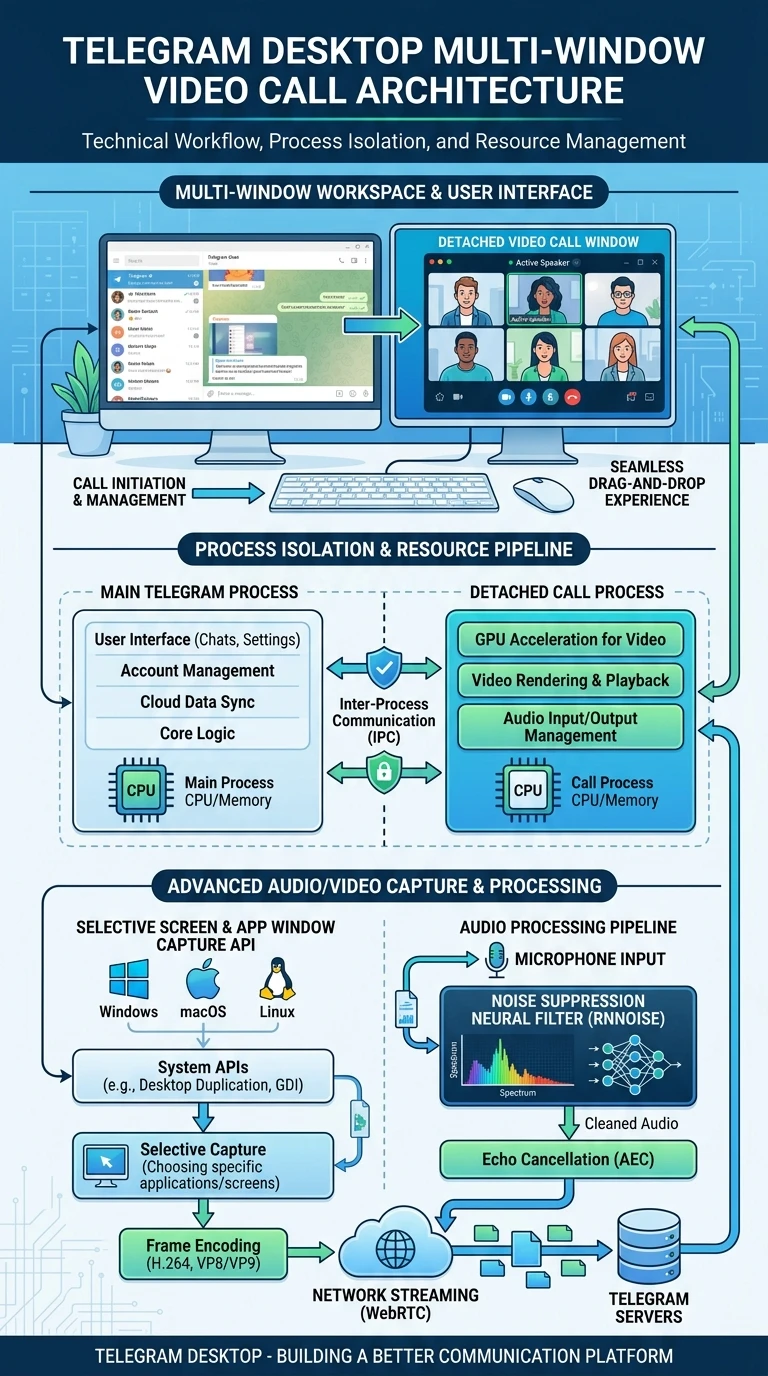
Telegram Desktop is built with native C++ and Qt GUI architecture. When a voice or video chat is initiated, Telegram spawns an isolated hardware-accelerated viewport thread. Video frames are rendered via direct OpenGL/DirectX pipelines with zero impact on main chat scrolling or media downloads.
tune
Interactive Desktop Call Controller
Simulate Detached Window & Individual Volume Boost
Test Telegram Desktop's independent volume control slider (up to 200%) and toggle screen sharing modes below.
Speaker: Alex Vance
100%
0% (Mute)
100% (Normal)
200% (Boost)
Display & Window Capture Target
Status: Broadcasting entire monitor (Display 1 • 4K @ 60 FPS).
format_list_numbered Step-by-Step: Managing Desktop Calls on Multiple Monitors
1
Join or Start Call in Telegram Desktop
Click the Voice Chat icon at the top of your group. Telegram immediately opens the call interface in a standalone native OS window frame.
2
Position Call Window on Secondary Display
Drag the call window to your external monitor. Maximize it or snap it to half-screen while keeping your primary monitor open for coding, browser research, or document editing.
3
Normalize Participant Audio Levels
If a team member is whispering or has a quiet microphone, right-click their participant avatar and slide the volume bar up to 200%. This adjustment is local to your speakers and affects no other attendees.
table_chart Desktop Calling Comparison: Telegram Desktop vs Slack vs Teams
| Specification | Telegram Desktop (C++/Qt) | Slack (Electron) | Microsoft Teams |
|---|---|---|---|
| Standalone Call Window | Yes (Fully Detached Multi-Window) | Embedded / Limited popup | Pop-out window |
| RAM Usage During Call | 90MB – 180MB | 450MB – 1,200MB | 600MB – 1,500MB |
| Per-User Volume Booster | Yes (0% to 200% Slider) | No (Global volume only) | No |
| Audio Noise Suppression | Built-in Neural AI filter | Standard audio gating | AI Noise Suppression |
| Selective Window Capture | Yes (Zero Desktop Exposure) | Yes | Yes |
lightbulb
Pro Tip: Push-to-Talk Global Hotkey Setup
In Telegram Desktop Settings > Advanced > Push to Talk, you can bind a system-wide global key (like Space or Caps Lock). Even when gaming in full-screen or compiling code in your IDE, pressing your hotkey instantly unmutes your microphone without switching windows!
auto_graph
Vertical Architecture Breakdown
Executive Infographic: Telegram Desktop Multi-Window Video Call Architecture
A comprehensive vertical architectural diagram showcasing Telegram Desktop's detached call window process isolation, selective screen capture APIs (Windows/macOS/Linux), rnnoise neural noise suppression, and multi-monitor resource management. Click the preview below to inspect in high-resolution lightbox view.
auto_stories
More in "Tips & Video Shorts" Learning Track


