How to Set Custom Notification Sounds in Telegram: 5-Second Audio Clips, Voice Note Alerts & Cross-Device Cloud Sync
Personalize your Telegram alert experience by transforming favorite soundbites, voice memes, and short audio snippets into custom notification tones. Discover how Telegram stores alert tones in your encrypted personal cloud for instant sync across all your devices.
music_note
Official demonstration: Tapping a short audio message or music track, selecting 'Save for Notifications', and assigning it to specific chats or global notifications.
5-Second Duration Cap
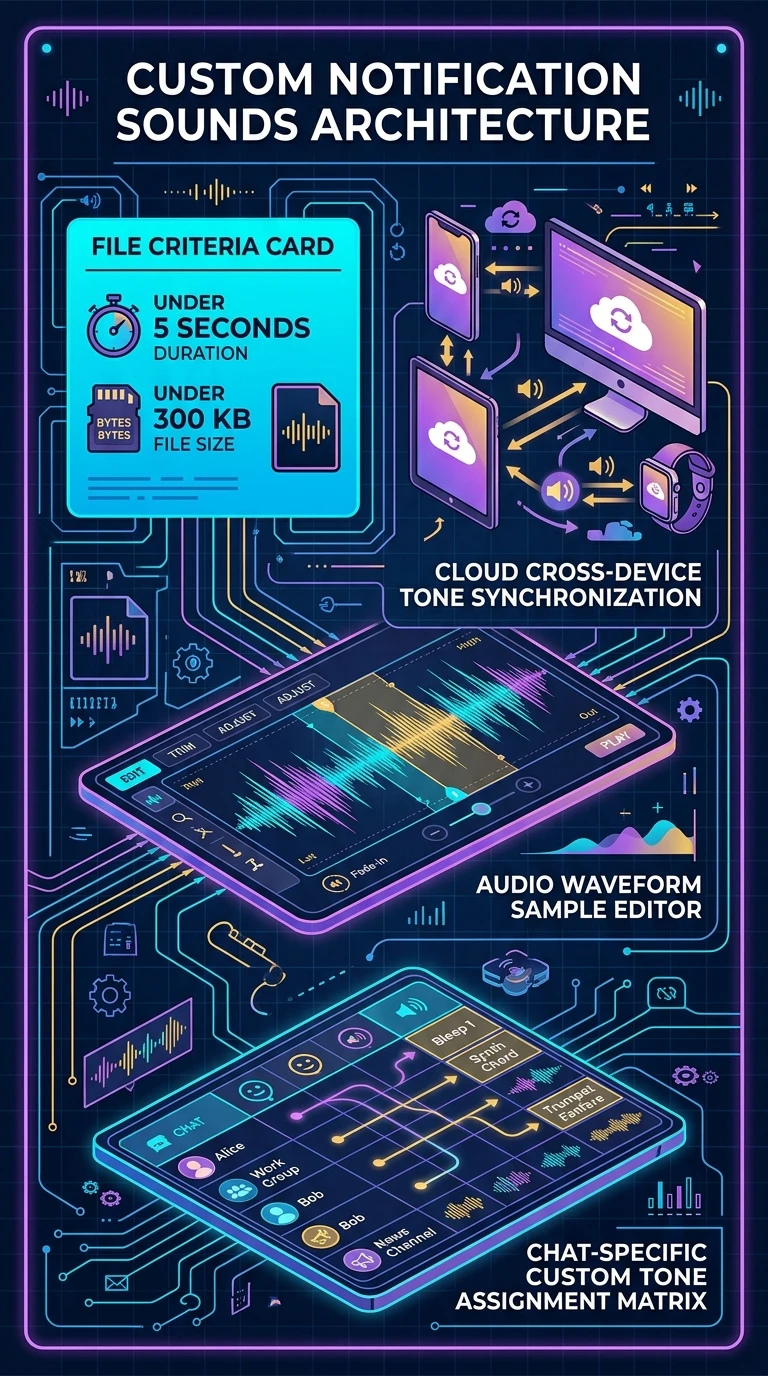
Optimized for alert efficiency: any voice memo or audio clip under 5 seconds duration and under 300 KB file size can become an alert tone.
Cloud Tone Library
Saved notification tones upload to your Telegram account, instantly available on iOS, Android, macOS, Windows, and Linux clients.
Per-Chat Customization
Assign unique alert tones to your closest friends, family members, VIP channels, or work groups to know who messaged without looking.
audiotrack
AUDIO SPECIFICATIONS
Technical Requirements & Supported File Formats
Telegram accepts multiple modern compressed audio containers for notification sounds:
audio_file
Container Types: MP3, AAC, M4A, OGG, and native Telegram Opus Voice Messages (OGG/Opus).
straighten
Strict Thresholds: Duration must not exceed 5.0 seconds, and file size must remain strictly under 300 KB. Long tracks can be trimmed in third-party editors prior to saving.
devices
OS Alert Handoff: On iOS, custom sounds integrate directly with the Apple APNs alert payload; on Android, tones register with the system Notification Channel manager.
science
INTERACTIVE SOUND LAB
Audio Tone Validator & Soundboard
Test audio samples against Telegram's 5-second and 300 KB thresholds and simulate per-chat notification assignments.
graphic_eq
Futuristic Blip
1.2s • 45 KB
notifications_active
Crystal Chime
3.4s • 120 KB
music_off
Full Song Chorus
12.5s • 850 KB (Exceeds)
Click any sample tone above to validate compliance with Telegram's alert sound engine.
auto_awesome
EXECUTIVE VISUAL SUMMARY
Telegram Custom Notification Sounds Architecture
A vertical 9:16 reference architecture detailing the 5-second / 300 KB criteria card, cross-device cloud sync, audio waveform sample editor, and per-chat tone assignment matrix.
auto_stories
More in "tips" Learning Track