How to Format Code in Telegram: Auto-Language Detection, Syntax Highlighting & Tap-to-Copy Blocks
Transform unreadable code dumps into clean, professional syntax-highlighted blocks. Learn how Telegram's built-in lexing engine automatically classifies programming languages, formats multi-line containers, and enables one-tap clipboard copying across desktop, mobile, and web clients.
How Telegram Encodes and Highlights Code Blocks Under the Hood
Under MTProto, formatted text is transmitted alongside an array of MessageEntity objects rather than raw HTML markup. This ensures flawless multi-platform rendering:
messageEntityCode with offset and length. Multi-line code blocks use messageEntityPre, which includes an explicit language string attribute.func, import, SELECT, { }) to determine styling.Interactive Syntax Highlighting & Copy Simulator
Select a programming language to test Telegram's syntax colorization and copy behavior in real-time.
Markdown Triple Backticks (Fastest Method)
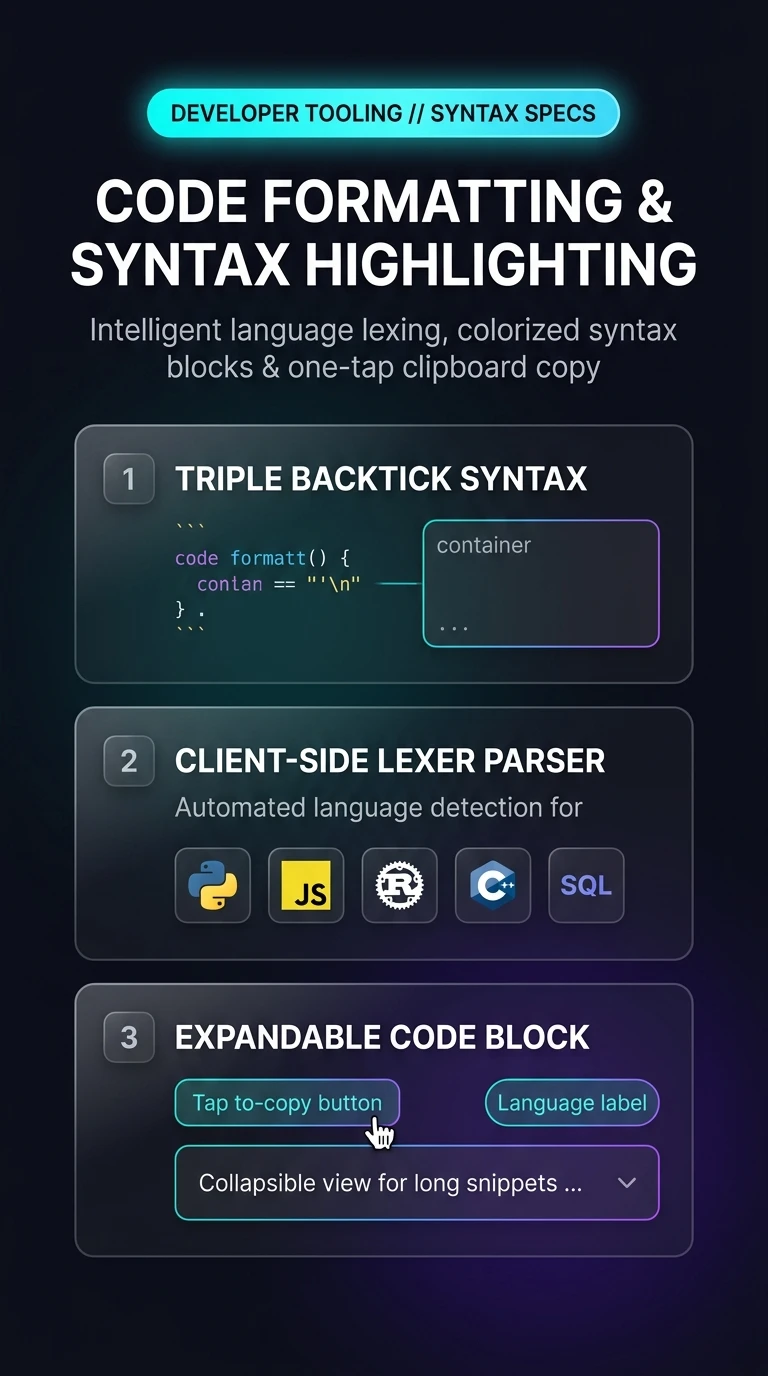
Type three backticks (```), optionally append the language name (e.g. ```python), press Shift+Enter to write your code, and close with another three backticks (```).
Context Menu Formatting (Mobile & Desktop)
Highlight any typed block of text, right-click (or tap the floating selection menu on mobile), select Formatting, and choose Monospace (for inline code) or Code (for multi-line blocks).
Keyboard Shortcuts
On Telegram Desktop or macOS, select any text and press Ctrl+Shift+M (or Cmd+Shift+M) to instantly toggle monospace code formatting.
While Telegram's heuristic engine detects common languages automatically, declaring the language explicitly on the opening backtick line (e.g., ```rust or ```sql) guarantees 100% token highlighting accuracy and displays the correct language badge on Desktop and Web clients.
Telegram Code Formatting & Syntax Highlighting Architecture
Visual breakdown of Telegram's markdown parsing triggers, client-side lexer heuristics, and tap-to-copy container mechanics.