How to Pause and Resume Voice and Video Recordings on Telegram: Multi-Take Capture, Audio Stitching & Streamlined Notes
Say goodbye to restarting long audio messages over a momentary stumble. Master Telegram's native pause-and-resume recording workflow to capture cohesive, multi-take voice and video messages, review audio buffers mid-stream, and seamlessly concatenate multiple segments without third-party editing tools.
How Telegram Buffers and Stitches Audio Chunks in Memory
Under the hood, Telegram's audio subsystem handles pausing and resuming without lossy transcoding:
Test Pause, Resume & Concatenation Workflow
Interact with the recording controls below to simulate multi-take audio capture and buffer stitching.
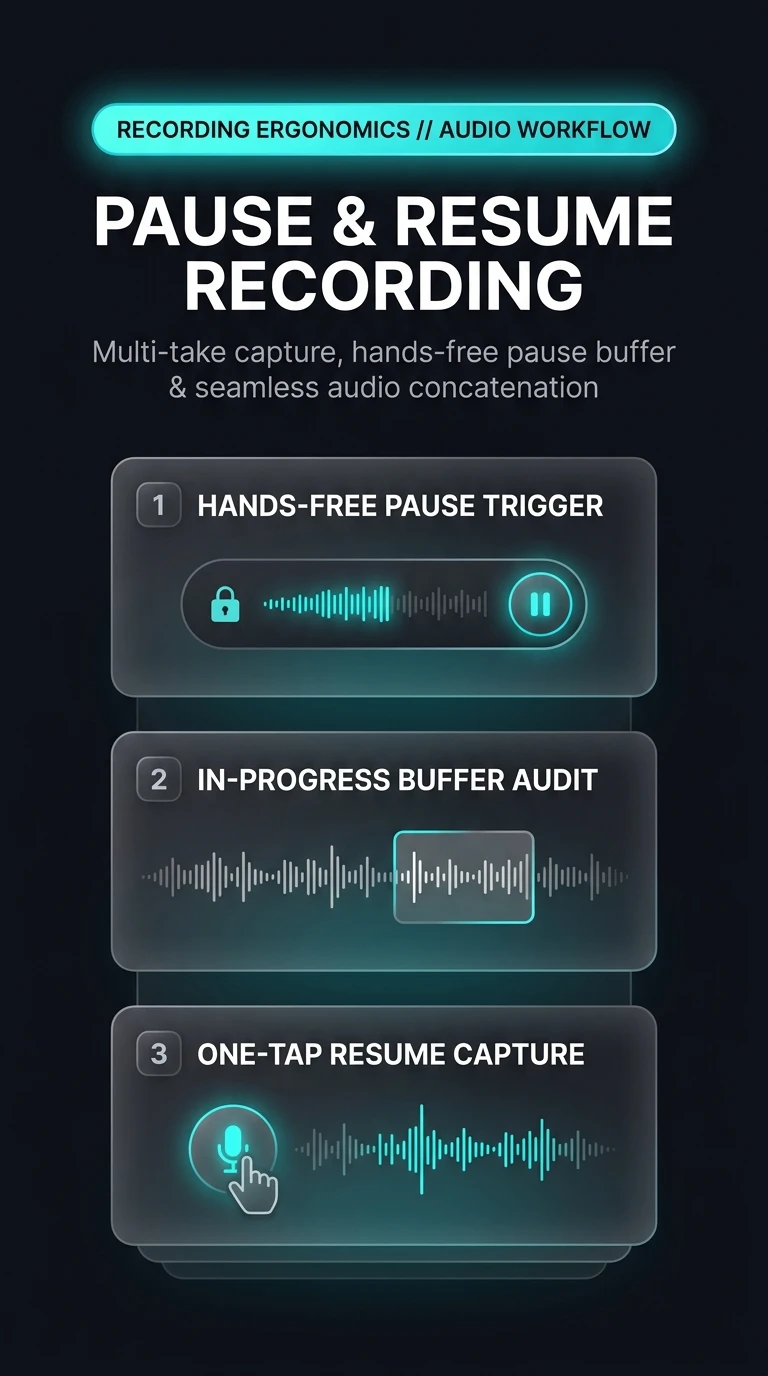
Swipe Up to Lock Recording
Hold the microphone or camera button and slide upward toward the lock icon to engage hands-free recording.
Tap the Pause Button
Tap the pause icon in the recording tray. Audio and video capture halts immediately, freezing your recorded buffer.
Tap Mic or Camera to Resume
Whenever you are ready to continue speaking or switch camera angles, tap the glowing microphone or camera icon to seamlessly append new footage.
While paused, you can tap the play icon in the recording tray to listen to your entire recorded message from the beginning. If satisfied, tap the blue send button; if you wish to start over, tap the trash bin icon to discard the entire take in one click.
Telegram Pause & Resume Audio Architecture
Visual breakdown of hands-free lock triggers, in-memory frame buffering, and frame-accurate audio concatenation.