How to Announce Telegram Messages with Siri: Hands-Free Audio Readout & Voice Reply Guide
Stay connected while driving, cycling, or working out. Learn how to configure Siri to speak incoming Telegram messages directly through your AirPods and reply instantly using natural voice dictation without picking up your iPhone.
headphones
Official demonstration: Siri seamlessly reads aloud an incoming Telegram message through connected Bluetooth headphones.
hearing
Hands-Free Readout
Siri chimes, announces the sender's name, and speaks the message content without requiring you to look at your lock screen.
mic
Instant Voice Reply
Simply speak your response after Siri finishes reading. No need to trigger "Hey Siri"—the mic listens for immediate dictation.
tune
Granular Chat Filtering
Limit announcements strictly to Direct Messages, VIP Contacts, or Favorites to prevent noisy group chat spam in your ears.
spatial_audio_off
How Apple SiriKit Powers Telegram Hands-Free Voice
In modern mobile workflows, constantly pulling your phone out of your pocket or glancing at your smartwatch creates cognitive fatigue and safety hazards during commutes. Apple's Announce Notifications API allows third-party messaging apps to integrate directly with SiriKit.
When your iPhone is locked and connected to compatible headphones (such as AirPods Pro, AirPods Max, or supported Beats models), iOS identifies incoming Telegram push payloads. If the sender is permitted under your notification filters, Siri plays a soft acoustic chime and articulates the message aloud.
graphic_eq
Interactive Audio & Voice Studio
Experience the Siri Readout & Dictation Flow
Simulate an incoming Telegram notification while wearing AirPods. Click "Simulate Incoming Alert" to watch the readout sequence and test instant voice reply dictation.
mic
Headphones Connected (AirPods Pro)
Device State: Locked • Pocket Mode
Waiting for incoming message event...
verified
Hardware Ecosystem Supported
AirPods (2nd gen+), AirPods Pro, AirPods Max, Beats Fit Pro, Powerbeats Pro
iOS 14+ Ready
settings
Step-by-Step Configuration on iPhone
1
Open iOS Settings > Notifications
On your iPhone, launch the native Settings app and tap Notifications.
2
Enable Announce Notifications
Select Announce Notifications. Ensure the master toggle at the top is turned ON. Make sure Headphones is checked under "Announce When Connected To".
3
Activate Telegram in App List
Scroll down to the list of installed applications and locate Telegram. Tap it and toggle Announce Notifications to ON.
4
Configure Direct Messages vs Groups
Under the Telegram settings page, choose whether Siri should announce Direct Messages, Time Sensitive Only, or All Notifications. Selecting Direct Messages is highly recommended to avoid ear fatigue from high-traffic group channels.
fact_check
Voice Readout Capabilities: Telegram vs Other Messengers
Feature
Telegram Siri Integration
WhatsApp SiriKit
Standard SMS / iMessage
Sender Name Announcement
check_circle Yes ("Telegram from [Name]")
check_circle Yes
check_circle Yes
Hands-Free Speech Reply
check_circle Instant dictation
check_circle Instant dictation
check_circle Instant dictation
Reply Without Confirmation
check_circle Configurable in iOS
check_circle Configurable in iOS
check_circle Configurable in iOS
Group Mute Respect
check_circle Fully respected
Inconsistent on muted chats
N/A
bolt
Power User Tip: Enable "Reply Without Confirmation" for Speed
By default, after you dictate a reply, Siri asks: "Do you want to send this?" If you want true hands-free velocity, go to Settings > Notifications > Announce Notifications and toggle Reply Without Confirmation to ON. Siri will read back your message briefly and send it immediately unless you interrupt, making voice communication frictionless!
account_tree
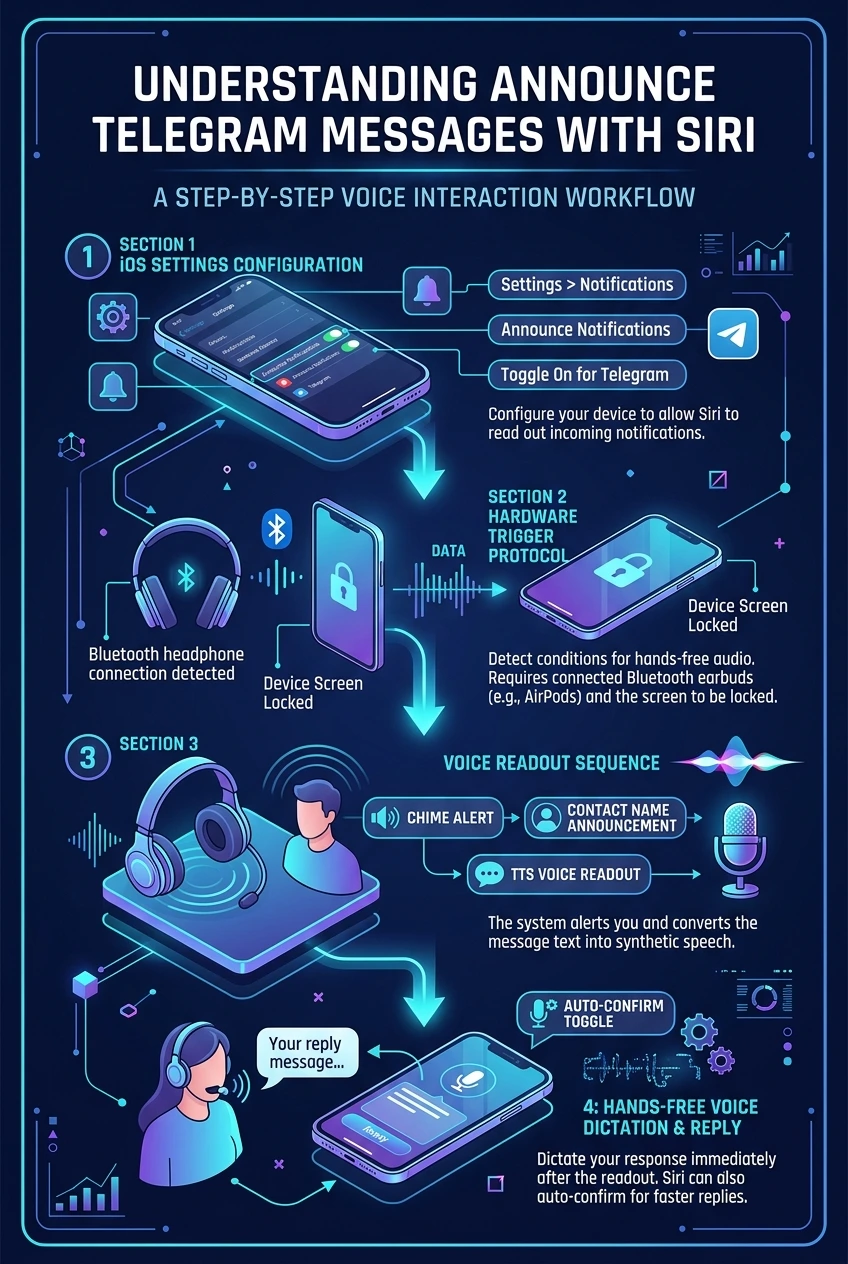
One-Page Executive Infographic
Announce Telegram Messages with Siri at a Glance
A comprehensive visual flowchart covering iOS notification permissions, headphone trigger states, Siri speech synthesis, and voice reply dictation.
💡 Tip: Click the image to view the ultra-sharp full-resolution infographic poster in the interactive lightbox viewer.
![[Telegram Tips & Shorts] How to Announce Telegram Messages with Siri: Hands-Free Voice Readout & Dictation Guide](https://tgway.com/images/guides/guide_118.webp?v=1788576034)