Mastering Telegram Voice Messages: 2X Speed, Scrubbing & Hands-Free Lock
Telegram transformed mobile voice messaging with ultra-efficient Opus audio compression, zero-distortion 2X speed playback, visual waveform scrubbing, and intuitive hands-free recording locks. Discover how to navigate 10-minute voice briefings in half the time, preview clips before sending, and instantly switch to circular Telescope video notes.
architecture 1. The Engineering Behind Telegram's High-Speed Voice Engine
Standard voice recording in legacy messaging apps often relies on basic AAC or AMR compression. When accelerated, these files produce unnatural, high-pitched frequencies ("the chipmunk effect"). Telegram solved this by integrating a high-performance audio engine directly into MTProto client libraries:
WSOLA Pitch Compensation
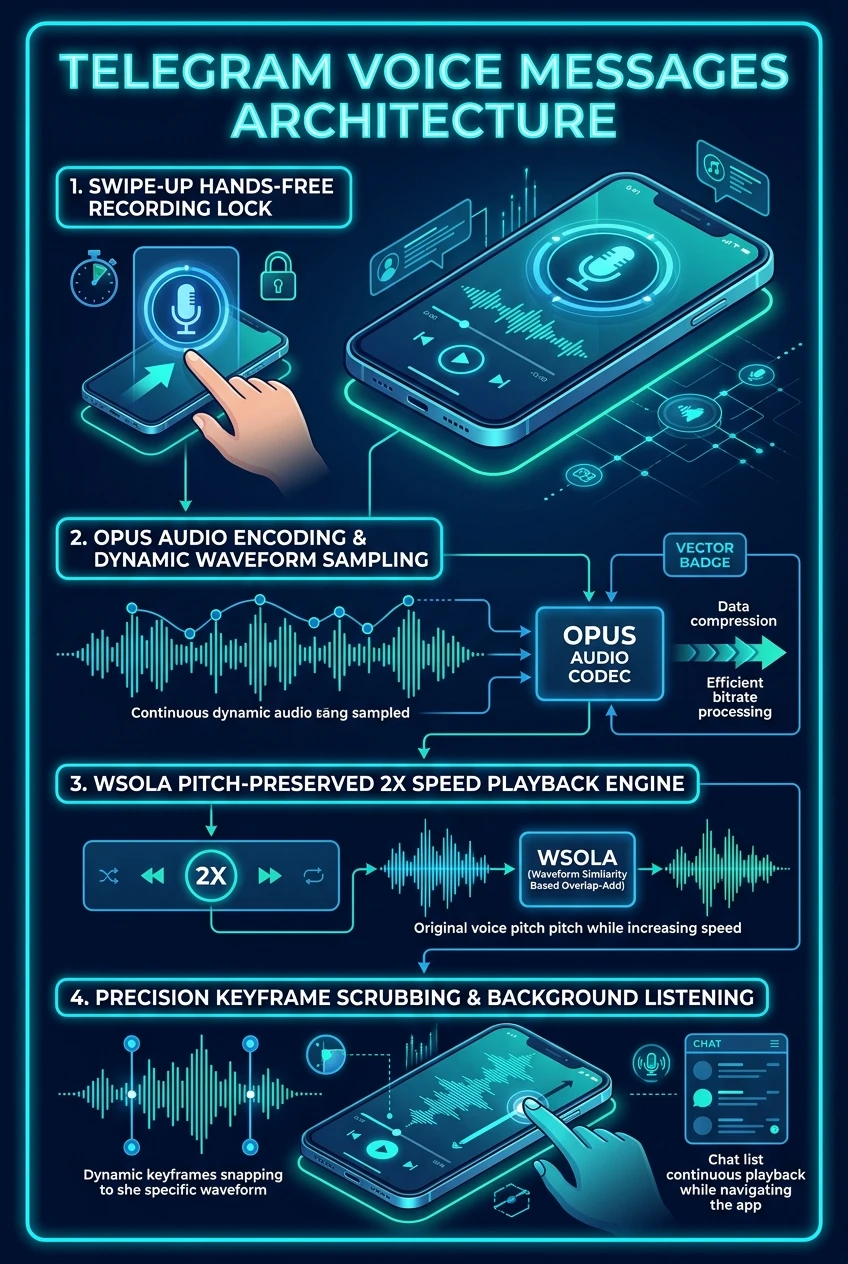
Waveform Similarity Overlap-Add (WSOLA) segments audio packets into overlapping micro-windows, matching zero-crossing phases to compress duration by 50% while preserving the original vocal pitch and cadence.
Real-Time Waveform Encoding
As you speak, Telegram computes 5-bit logarithmic peak amplitudes every 100 milliseconds. This tiny 100-byte metadata array renders immediately on the recipient's screen, enabling accurate tactile seeking before the full audio file finishes downloading.
Hands-Free Gesture Lock
Swiping up locks the recording state into a dedicated drawer. This detaches your thumb from the screen, enables pausing, allows you to listen back to your recording, and provides an instant cancel button.
One-Tap Telescope Video Switch
Tapping the microphone icon changes the input state to video mode, allowing you to record 60-second circular Video Messages (Telescope) encoded with H.264/AAC with zero configuration.
compare_arrows 2. Voice Messaging Capability Comparison
How Telegram's audio architecture compares against mainstream mobile communication apps:
| Feature / Metric | Telegram Messenger | Apple iMessage | |
|---|---|---|---|
| Playback Speeds | 1X, 1.5X, 2X (WSOLA Pitch Corrected) | 1X, 1.5X, 2X | 1X only (Standard) |
| Visual Waveform Scrubbing | Touch-drag across any point of wave | Slider dot scrubber | Static waveform, standard scrubber |
| Pre-Send Preview & Listen | Native in locked recording mode | Available after lock | Listen before send |
| Audio Codec & Bitrate | Ogg Opus (24–48 kHz Variable) | Opus (Standard low-bitrate) | AAC-LD |
| Circular Video Notes | Built-in instant toggle (Telescope) | Instant video note feature | None (Standard video only) |
You do not need to press any button to listen to a voice message privately. Simply bring your phone up to your ear like a traditional phone call: Telegram's proximity sensor automatically redirects playback from the loud bottom speaker to the top ear speaker. Lowering the phone pauses the clip!
Telegram Voice Messages Engine at a Glance
A comprehensive visual flowchart summarizing 2X playback acceleration, Opus waveform generation, hands-free locking, and circular video notes.