desktop_windowsTelegram Desktop for Windows
How to Install Telegram on Windows PC (Step-by-Step)
This page shows every screen you will see while installing Telegram Desktop on a Windows PC, from the download button to your first login. Each step has a real screenshot and tells you the one thing to click. The whole process takes about two minutes and does not need administrator rights.
- verified_userOfficial source only
- scheduleAbout 2 minutes
- lock_openNo admin rights
- checklist10 screens
Phase 01 · screen 1Get the installer
-
Open the TGWAY download centre
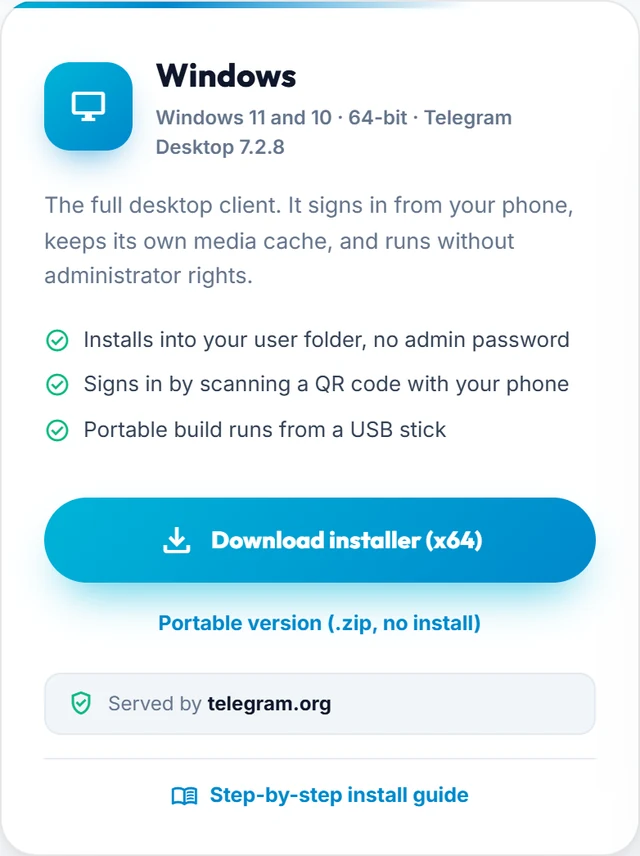
tgway.com/apps - the installer, the portable build and every other platform on one page. touch_appOpen the TGWAY download centre and click Download installer (x64) on the Windows card.
That button is the official download link: it hands you
download Open the TGWAY download centreWindows installer, portable build and every other platform open_in_newtd-setup-win-x64-*.exe(about 56 MB) straight from Telegram's own server, the same file desktop.telegram.org serves. We do not host, repackage or modify it. Use our download centre or Telegram's own page and nothing else - copies offered elsewhere can carry malware, and Telegram never charges for the app.
Phase 02 · screens 2 to 7Run the setup wizard
-
Run the installer and confirm the folder
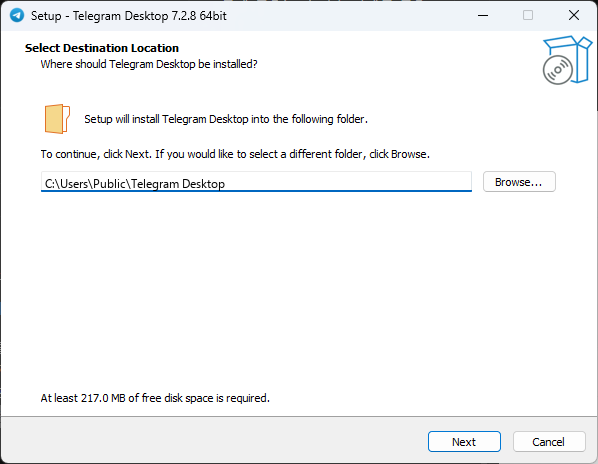
The default folder is fine. You do not need to change it. touch_appDouble-click the downloaded file, then click Next.
If Setup first asks for a language, pick yours and click OK. Telegram installs inside your own user folder, so Windows does not ask for an administrator password.
verified_userIf a blue "Windows protected your PC" box appears it is only because the file is freshly downloaded. Click "More info" and check that the publisher is Telegram FZ-LLC. That is Telegram's real signing name. If the publisher is anything else, close the window and download again from the official page. -
Keep the Start Menu folder
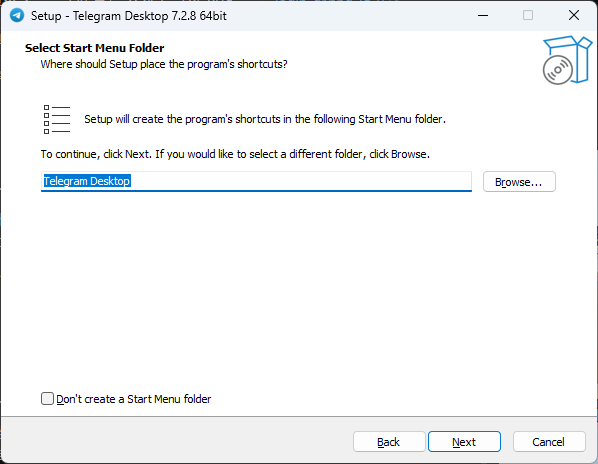
This only decides where the shortcut appears in your Start Menu. touch_appClick Next.
Leave the name as "Telegram Desktop". Ticking "Don't create a Start Menu folder" is safe too; it only removes the Start Menu entry.
-
Decide on a desktop shortcut
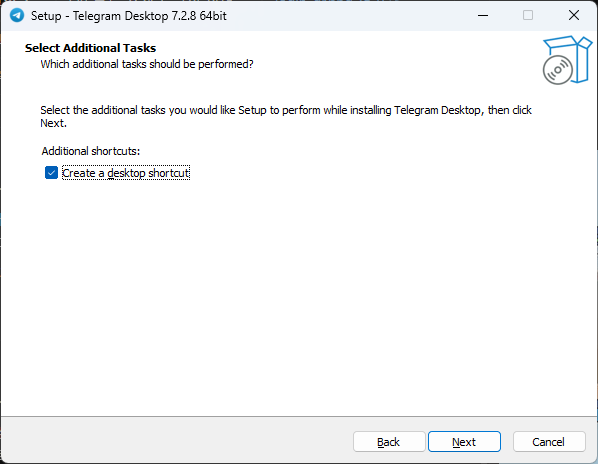
Checked by default. Untick it if you prefer a clean desktop. touch_appLeave Create a desktop shortcut ticked and click Next.
You can always start Telegram from the Start Menu or by searching for it, so this choice is only about convenience.
-
Start the installation
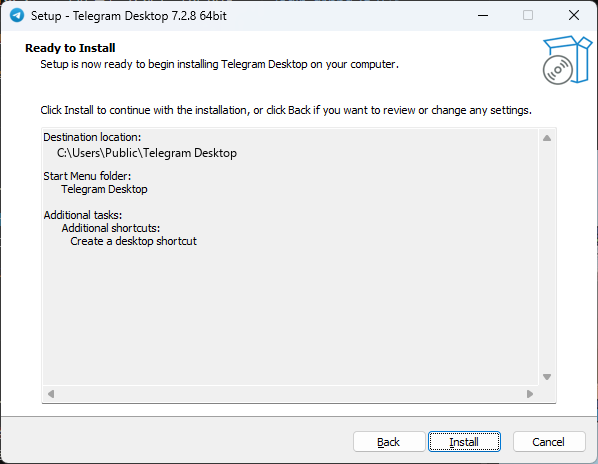
A summary of your choices. Nothing has been copied yet. touch_appClick Install.
This is your last chance to press Back and change anything. After Install, the files start copying.
-
Wait a few seconds
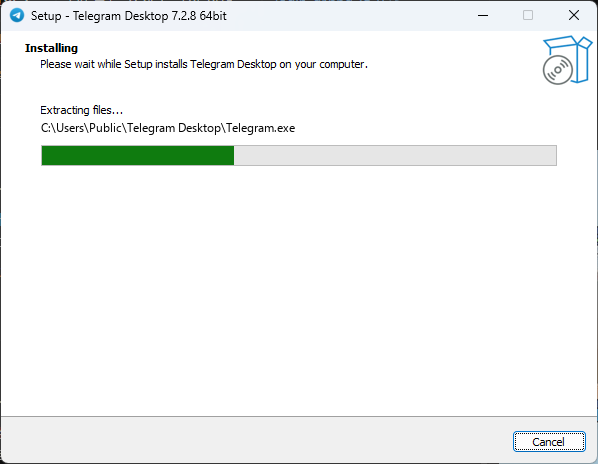
The progress bar fills in a few seconds on most PCs. scheduleNothing to click. Just wait.
Setup copies Telegram.exe and its files into the folder from step 2. Do not close the window while the bar is moving.
-
Finish and launch Telegram
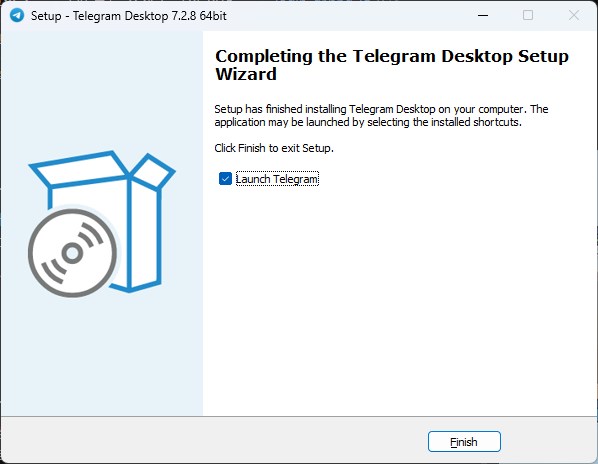
Installation is complete. Telegram opens as soon as you click Finish. touch_appLeave Launch Telegram ticked and click Finish.
The setup window closes and Telegram starts. From now on you open it from the desktop shortcut or the Start Menu.
Phase 03 · screens 8 to 10Sign in to your account
-
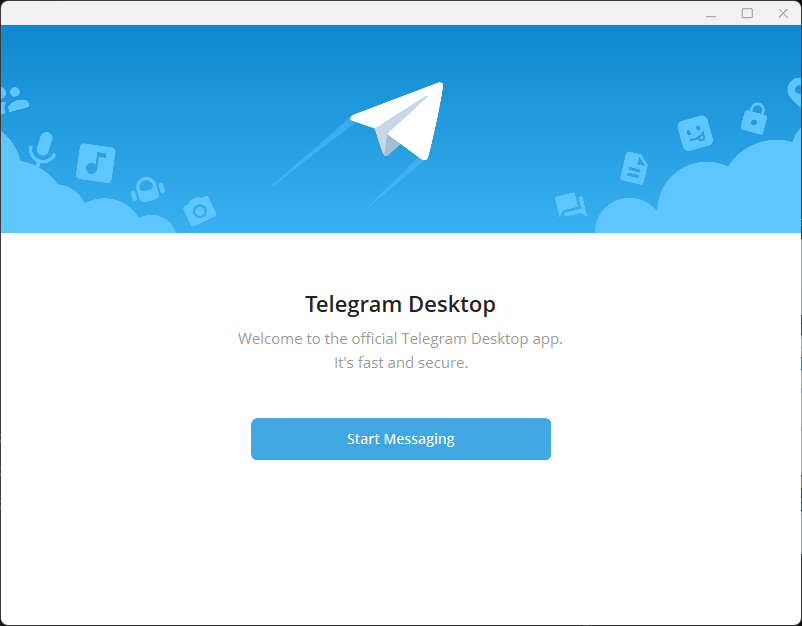
The welcome screen
This is what a freshly installed Telegram Desktop looks like before you sign in. touch_appClick Start Messaging.
Telegram Desktop uses the same account as the app on your phone. You do not create a new account here; you connect this PC to the account you already have.
-
Log in by scanning the QR code with your phone
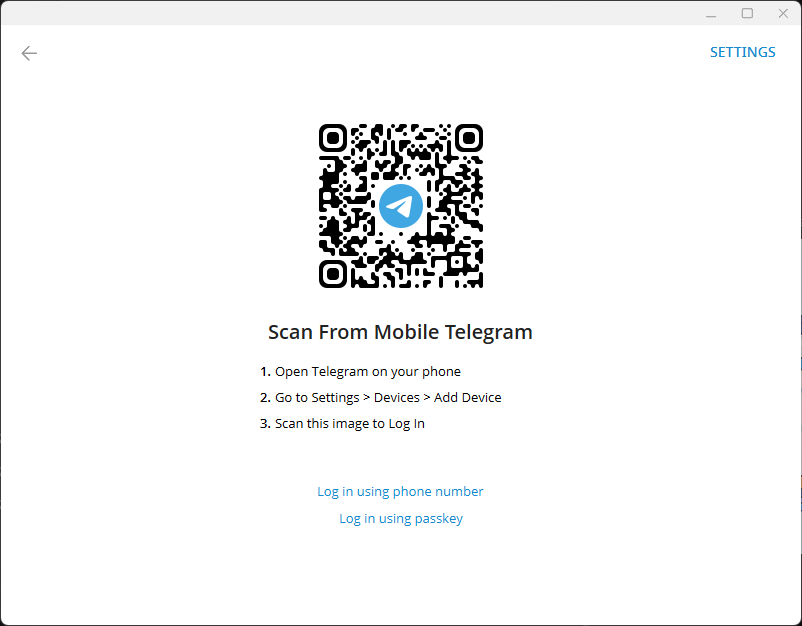
The fastest way to sign in. The code on your screen is unique and refreshes, so scan the one you see, not this picture. qr_code_scannerOn your phone open Telegram, go to Settings > Devices > Add Device, and point the camera at the code.
The PC signs in the moment the scan succeeds. No password or SMS is needed. If you have a cloud password (two-step verification) turned on, Telegram asks for it once.
-
Or log in with your phone number
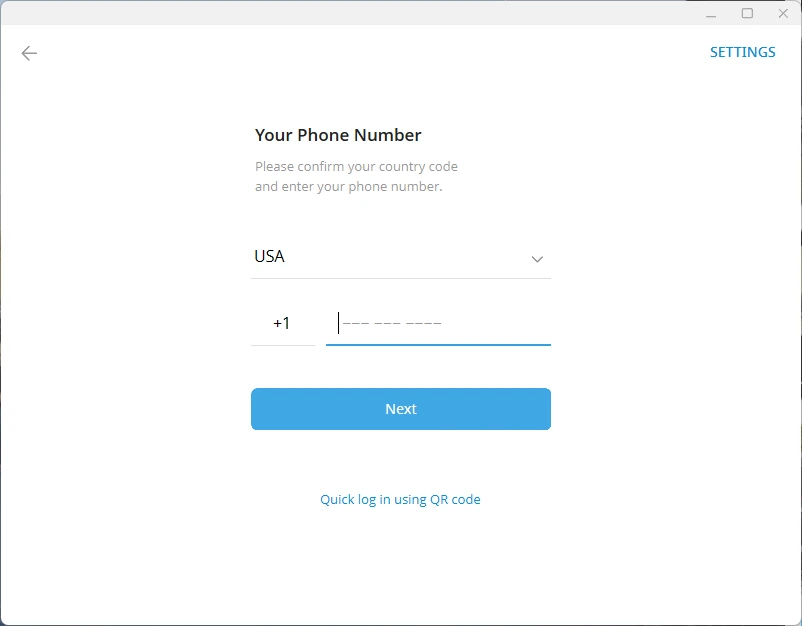
Use this if your phone is not nearby. Telegram guesses your country from your connection; tap it and search if the guess is wrong. touch_appClick Log in using phone number, type your number and click Next.
Telegram sends a login code to the Telegram app on any device where you are already signed in. If there is none, it sends an SMS. Type the code and, if you use two-step verification, your cloud password. Never share this code with anyone. Telegram staff will never ask for it.
You downloaded the installer, ran it, and signed in. Telegram Desktop is now on this PC and everything below is optional reading.
![[Telegram 02] Official Download Guide: Choosing the Right Telegram Client for iOS, Android & Desktop](https://tgway.com/images/guides/guide_105.webp)
![[Telegram 03] Installing Telegram on Windows PC: Native Desktop Client, Portable Mode & Multi-Instance Management](https://tgway.com/images/guides/guide_106.webp)