folderNo installer, no admin password
How to Run Telegram on Windows Without Installing It
The portable build is the same Telegram Desktop in a folder you unzip yourself. Nothing is written to Program Files, nothing is added to the registry, and Windows never asks for an administrator password — which is why it works on a locked-down work laptop and from a USB stick. The trade is that your account ends up living in that folder, so this page shows every screen in order and then exactly where you must not leave it.
- lockNo admin rights
- scheduleAbout 3 minutes
- devicesRuns from a USB stick
- checklist6 screens
Phase 01 · screen 1Get the zip and unpack it
-
Download the portable build, not the installer
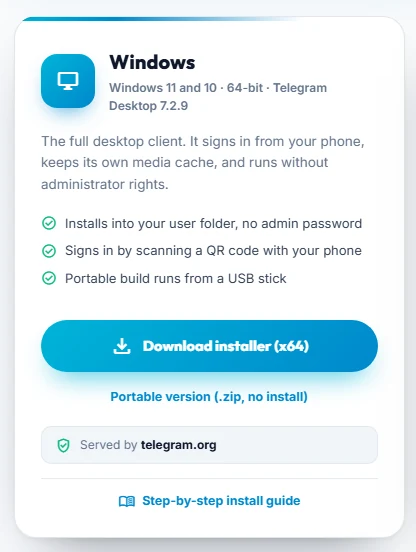
The portable link sits under the big installer button. Both files come from telegram.org. touch_appOpen the TGWAY download centre and click Portable version (.zip, no install).
That is the official download link — the file comes straight from telegram.org and we do not host, repackage or modify it. It is about 70 MB and arrives as td-portable-win-x64-7.2.9.zip, where the version number changes over time. The big blue button above it is the ordinary installer; if you click that one you get the wizard instead, which is a different guide.
When the download finishes, right-click the zip and choose Extract All, then pick somewhere you can write to — your Documents folder, the Desktop, or the USB stick itself. Do not try to unpack it into Program Files; that is exactly the place portable is meant to avoid, and Windows will ask for the admin password you may not have.
warningRun it from the unpacked folder, not from inside the zip. Windows will happily open Telegram.exe while it is still in the archive, and it appears to work — but everything it saves goes to a temporary copy that vanishes. You would sign in, close it, and find yourself signed out again with no explanation.
What is actually in the folder
Two items when you unzip it, four after the first launch.
Straight after you unzip
Telegram.exe — the entire app, about 220 MB
modules\ — a graphics library it needs
Two items. Nothing here identifies you, so this folder is safe to copy anywhere.
After you run it once
Telegram.exe and modules\ — unchanged
tdata\ — settings, cache and, once you sign in, your login
log.txt — a plain diagnostic log
The folder is now personal. tdata appears on the very first run, before you have typed anything.
This is the whole difference between portable and installed Telegram: the installed one keeps your account under your Windows user profile, where other people signing into the PC cannot reach it. The portable one keeps it in a folder that anyone who can open that folder can copy.
Phase 02 · screens 2 to 5Start it and sign in
-
Open Telegram.exe
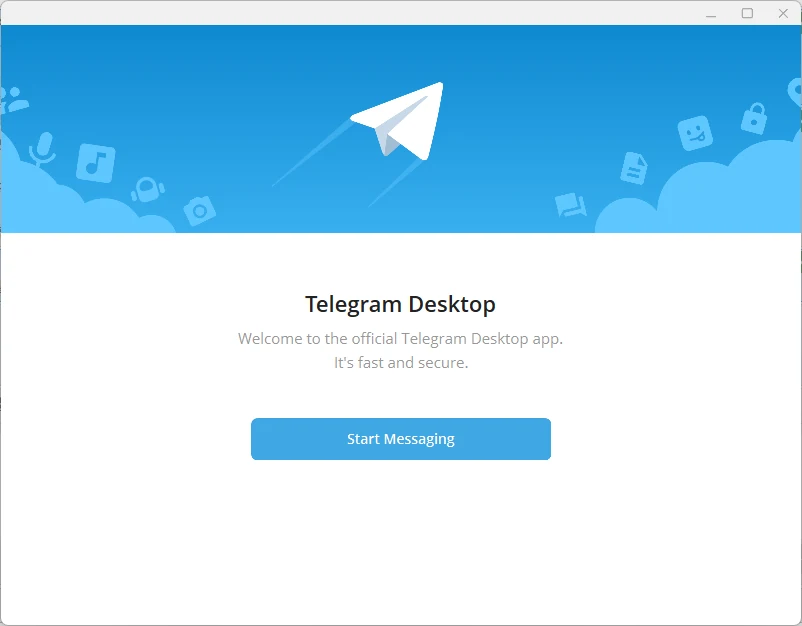
Identical to the installed app. There is no setup wizard because there is nothing to set up. touch_appDouble-click Telegram.exe, then click Start Messaging.
The first launch takes a few seconds longer than later ones because this is when tdata gets created. Windows may show a SmartScreen notice the first time; check that the publisher reads Telegram FZ-LLC before you continue. If it says unknown publisher, you did not get the file from telegram.org — delete it and download again.
-
Choose how to sign in
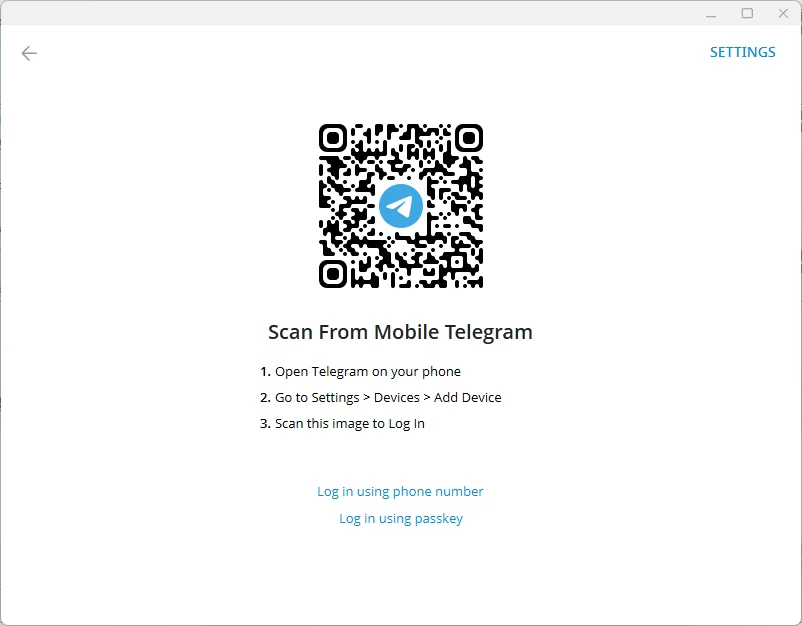
Scanning is the fastest route. The two links underneath are the alternatives. qr_code_scannerOn your phone open Settings → Devices → Add Device and point it at this code — or click Log in using phone number.
Scanning is quicker and never asks you to read a code out loud, which is the single step most account thefts depend on. The code on screen is a live request from this computer and it expires on its own, so a stale screenshot of it is harmless.
shieldNever scan a code somebody shows you. Scanning grants a session on your account to whatever computer generated that code. It is only safe when you are the one who opened this screen, on a machine in front of you. -
Check the country before the number
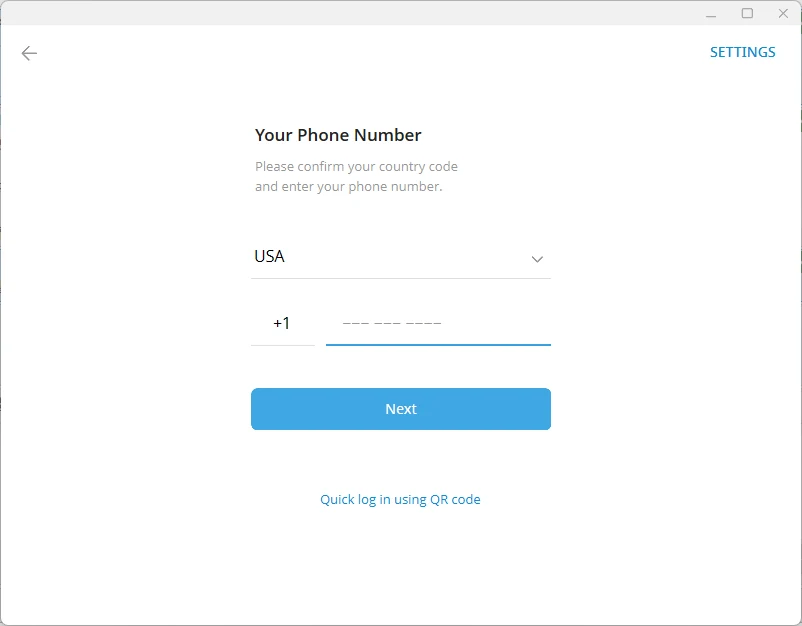
Telegram guesses the country from your connection. Tap it and search if the guess is wrong. touch_appClick the country line, type the country name, and pick it from the list.
The guess comes from your network, not from your account, so a VPN or a hotel connection will often get it wrong. One thing catches people out: the United States is listed as USA, so typing the full name returns Country not found. Search for the short form instead.
-
Type your number and continue
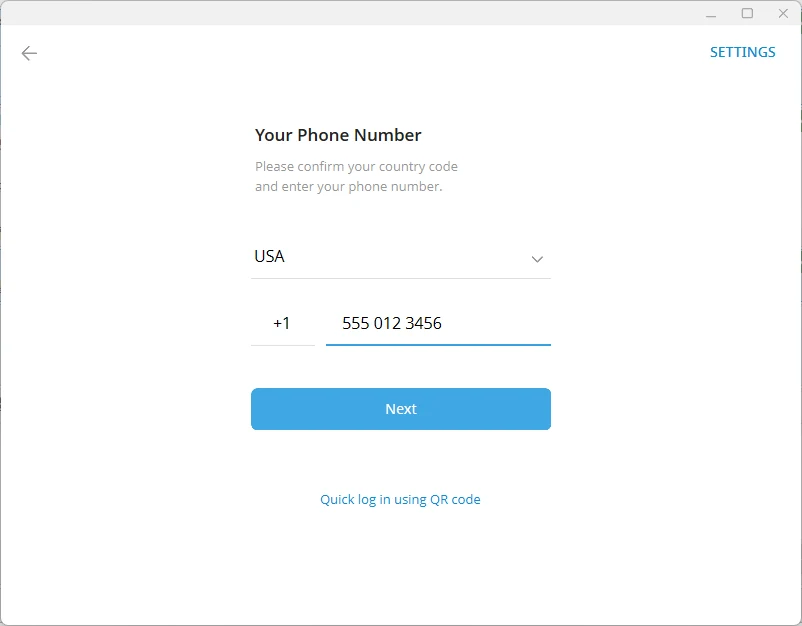
The number shown here is an example. Yours goes in without the country code. touch_appEnter your number without the leading zero or country code, then click Next.
The login code arrives in Telegram on your phone, not by SMS, whenever you already have the app somewhere. If you have two-step verification switched on you will be asked for your cloud password after the code — that password is not stored in this folder and cannot be recovered from it.
verified_userThat code is never for anyone else. Telegram sends it to sign you in. Nobody from support, from a giveaway, or from any group will ever need it, and passing it on hands over your account.
Phase 03 · screen 6Settings worth knowing about
-
Check that updates are on
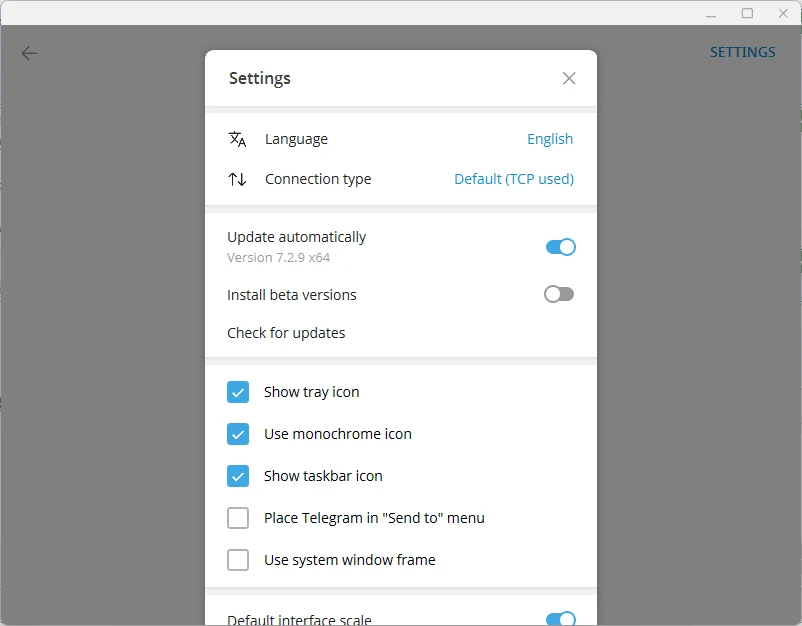
This panel opens from SETTINGS in the corner, even before you sign in. updateClick SETTINGS in the top corner and confirm Update automatically is on.
Portable Telegram updates itself just like the installed one — the common belief that you have to download a new zip every time is wrong. What is true is that it can only update if it can write to its own folder. On a read-only USB stick, or a locked corporate share, the update quietly fails and you stay on an old version. If you keep it on a stick, open it from a normal drive once a month and let it catch up.
The same panel is where the interface language lives, and it is worth knowing that this panel and everything else you change here is written into tdata — which brings us to the one thing that really matters about running Telegram this way.
The folder is your account
Once you have signed in, tdata holds the key that proves this computer is you. Anyone who copies that folder gets a working, signed-in Telegram — no password, no code, no notification to you. That is not a flaw; it is the same mechanism that lets you carry the app on a stick. It just means the folder deserves the care you would give a written-down password.
| Where you put the folder | What that means |
|---|---|
| Your own PC, your user folder | Fine. Other Windows accounts on the machine cannot read it. |
| A USB stick you keep with you | Fine, and the point of portable. Losing the stick means handing someone your account, so add a passcode. |
| A shared or work network drive | Do not. Anyone with access to that share can copy your login, and IT backups will copy it too. |
| A public or library computer | Do not leave it there. Use it, sign out, delete the folder — or use Telegram Web instead, which leaves nothing behind. |
![[Telegram 03] Installing Telegram on Windows PC: Native Desktop Client, Portable Mode & Multi-Instance Management](https://tgway.com/images/guides/guide_106.webp)