A Telegram Security Baseline in Fifteen Minutes

The last seven steps were about understanding: what happens to accounts, what Telegram can see, why your phone number and your login code are the doors people try. This step is where you act on it, and it is shorter than you might expect.
Three settings close most of the doors ordinary people face: Two-Step Verification, a recovery email for it, and a look at which devices are signed in. Together they take about fifteen minutes, they do not change how you use Telegram day to day, and once they are done you will rarely need to touch them again. Everything later in this track builds on them.
What you will be able to do after this step
- check_circle Turn on Two-Step Verification with a password you will not forget.
- check_circle Add a recovery email and a hint that helps you and nobody else.
- check_circle Read your list of signed-in devices and end the ones you do not recognise.
checklist Why these three, and in this order
Each setting closes a different door, and each one covers a gap the others leave. That is why the order matters.
| Setting | Closes | Leaves open | Time |
|---|---|---|---|
| Two-Step Verification | A stolen login code, or a hijacked phone number, being enough on its own to sign in | Devices that are already signed in | About 5 minutes |
| Recovery email | Being locked out of your own account because you forgot the new password | Nothing on its own; it only protects the password above | About 3 minutes |
| Checking signed-in devices | Someone who got in once and simply stayed | Future logins, which the password now protects | About 5 minutes |
Two-Step Verification protects every new login. It does not sign anyone out. So the device check comes last: first you lock the door, then you look around to make sure nobody is already inside.
The same three settings on your device
The names are the same everywhere; the way in differs slightly. Pick the one you are holding.
Settings is the gear in the bottom bar
Two-Step Verification and recovery email: Settings > Privacy and Security > Two-Step Verification. Set the password, add a hint, then enter and confirm your recovery email when asked.
Signed-in devices: Settings > Devices. Your current device is at the top; every other session is listed below it with its device name, app and approximate location.
Two places to visit: Privacy and Security, then Devices.
Settings is behind the menu at the top left
Two-Step Verification and recovery email: Menu (☰) > Settings > Privacy and Security > Two-Step Verification. Set the password, add a hint, then add your recovery email.
Signed-in devices: Menu (☰) > Settings > Devices. Tap any session to see its details and end it on its own.
Two places to visit: Privacy and Security, then Devices.
Telegram Desktop on Windows, macOS and Linux
Two-Step Verification and recovery email: Menu (☰) > Settings > Privacy and Security > Two-Step Verification.
Signed-in devices: on Desktop the list lives in the same section: Settings > Privacy and Security > Active sessions. The separate Mac app from the App Store follows the phone layout and shows it as Devices.
On Desktop both settings are in Privacy and Security.
password Choosing a password you will keep
- Make it new. A password you have used on any website may already be on a leaked list. This one should exist nowhere else.
- Make it long rather than clever. Three or four ordinary words you can picture together are easier to remember and harder to guess than a short string of symbols.
- Write it down somewhere safe, or keep it in a password manager. You will only type it on new devices, which can be months apart. That is exactly when people forget.
- Keep the hint useless to others. The hint is shown to anyone who reaches the password screen, including someone trying to get in. "Grandmother's street" helps you; your dog's name, which is on your profile photo, helps them.
The recovery email is the safety net for all of this. Telegram's own wording is plain: it is the only way to recover a forgotten password. Without one, your only options are to remember the password or wait seven days for it to be reset. Use an email account you still expect to have in a few years, and one that is itself protected.
Someone gets your login code by a trick
A message pretending to be support asks you to "confirm" the code you just received, and you read it out.
lock_open Without the baseline
The code alone signs them in on their own device.
They can read your chats and message your contacts in your name.
You may not notice until a friend asks why you sent them a strange link.
verified_user With the baseline
The code is not enough: they reach the password screen and stop.
The hint tells them nothing useful.
You check Devices, see nothing new, and change nothing but your habits.
The trick still works on you. With the baseline, it no longer works on your account.
devices Reading the list of devices
The devices list is the one screen that shows who is signed in to your account right now. Most entries are you: your phone, a laptop, maybe a tablet or a browser you used once. What you are looking for is anything you cannot account for.
- A device you do not own, or do not remember using. End it. If it was you, you will simply have to sign in there again.
- A browser session from a computer you no longer use, such as a work laptop or a library machine. End it. Closing the tab never signed you out.
- A location that seems wrong. Locations are approximate and based on the network, so a nearby city is normal. A different country you have not been to is worth ending.
If anything looks wrong, ending that one session is usually enough. If you are unsure about several, Terminate all other sessions signs out everything except the device in your hand. Do it after Two-Step Verification is on, so whoever was there cannot simply sign back in with a code. Use a device you have been signed in on for a while: a session that was only just created is not allowed to end the others.
timer Try it now — fifteen minutes
- Pick the password and write it down first Before opening any setting, choose it and store it where you will find it in a year.
- Turn on Two-Step Verification Privacy and Security > Two-Step Verification. Enter the password twice and add a hint that only helps you.
- Add and confirm the recovery email Telegram sends a code to that address. Enter it to finish; an unconfirmed email is not a safety net.
- Open the devices list End every session you cannot account for. If in doubt, end all the others.
- Note today's date Come back to the devices list every few months, or whenever you lose a device or stop using a computer.
Why one session is the whole account, what ending a session actually does, and the two other standing permissions, websites and bots, that never appear in the devices list.
help Questions
Will I have to type the password every time I open Telegram?
No. It is only asked when you sign in on a new device, or sign in again after being signed out. On devices where you are already signed in, nothing changes. If you want a lock every time you open the app, that is a different setting, the passcode, covered later in this track.
Does turning on Two-Step Verification sign out my other devices?
No, and that is why the devices check is part of the baseline. A session that is already open stays open until you end it.
What if I forget the password and have no recovery email?
You can still use any device where you are already signed in. To sign in on a new one, you would have to remember the password or wait seven days for it to be reset, and during that time you cannot sign in anywhere new. A confirmed recovery email turns this from a week-long problem into a few minutes.
Someone asked me for my Two-Step Verification password to "verify" my account. Is that normal?
Never. Nobody at Telegram, and no legitimate group or bot, needs it. The same rule from Step 004 applies to your login code. Anyone asking for either is trying to sign in as you.
I have more than one account. Do I need to do this for each?
Yes. Two-Step Verification and the recovery email are set per account, and so is the devices list. The account you added most recently is often the one that has none of this yet.
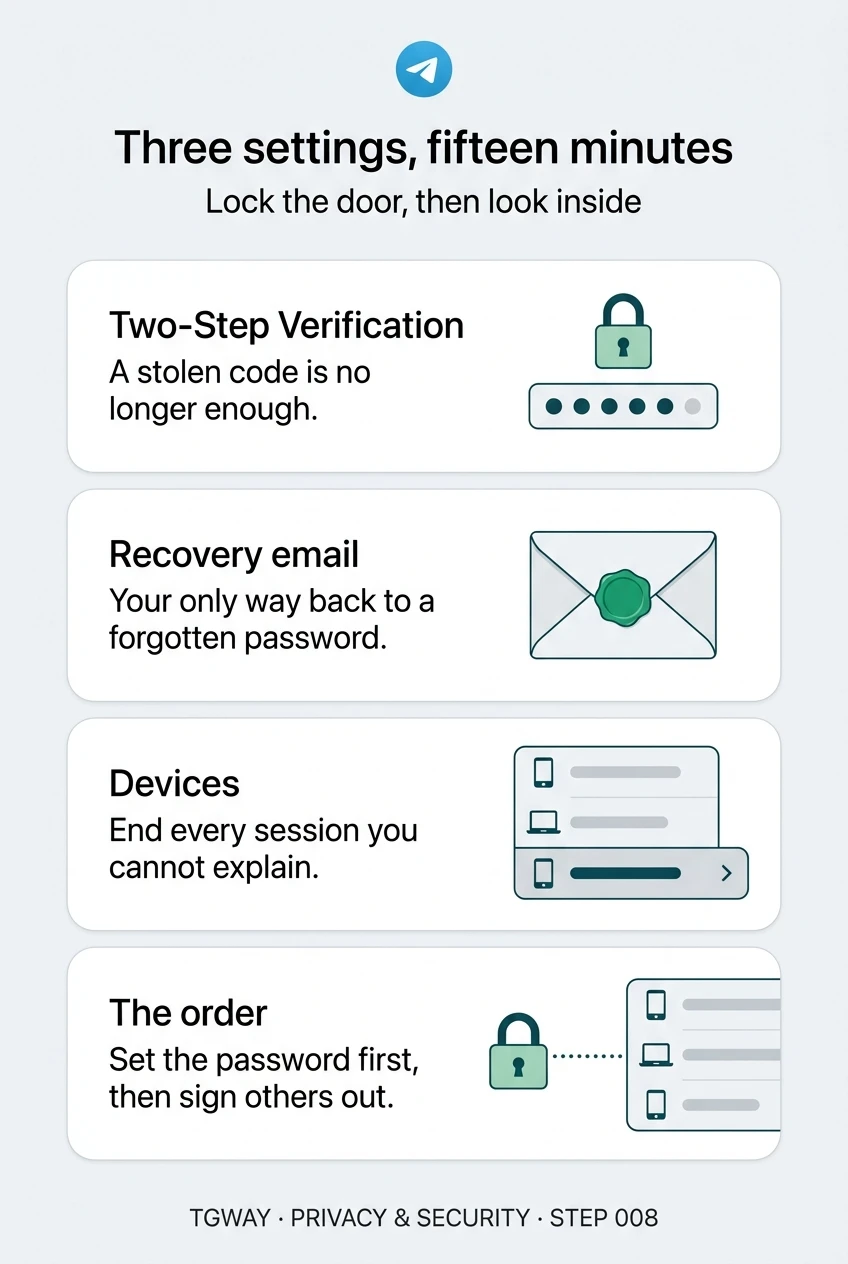
Three settings, fifteen minutes
Two-Step Verification, a recovery email and the devices list: what each one closes, and why the password comes before signing others out. Tap to open it at full resolution.