Run Two Telegram Accounts on Your Computer

Step 006 put a second account on your phone. On a computer the idea is the same, one app holding several accounts, but the details that matter change. The screen is bigger, the app often stays open all day, and a work account and a personal one can end up sharing one window, one set of notifications and one passcode.
There are two ways to run two accounts on a computer, and they behave differently. Adding an account inside Telegram Desktop keeps one window and lets you switch; a second, separate copy of the app gives each account its own window, side by side. This step shows both, how the login works when your phone is on the other account, and the one notification switch most people never find.
What you will be able to do after this step
- check_circle Add a second account to Telegram Desktop or Telegram for macOS.
- check_circle Choose between switching in one window and two separate windows.
- check_circle Control whether both accounts notify you, and lock them properly.
format_list_numbered Adding the second account
The account list sits in a different place depending on which desktop app you use.
- Telegram Desktop on Windows, macOS or Linux: open the main menu Click the three lines at the top left. Your name is at the top; click the small arrow next to it to show the account list.
- Telegram for macOS, the native app: open Settings Your accounts are listed at the top of Settings.
- Choose Add Account The login screen appears, as it did the first time you installed the app.
- Log in with the other account Scan the QR code with a phone where that account is signed in, or log in by phone number and code. If the account uses Two-Step Verification, you will be asked for its cloud password.
- Switch from the same list Click an account to move to it. Its chats replace the ones on screen.
qr_code_scanner The QR code and the wrong account
Scanning the QR code is the quickest way in, and it has one trap. The code signs the computer into whichever account the phone has open when you scan. If your phone is showing your personal account, scanning signs the computer into your personal account again, not the work one.
So switch the phone to the account you want first, then open its Devices screen and scan. If the second account is not on your phone at all, log in with its phone number and code instead. Either way, the new session appears in that account's device list, which is worth checking afterwards.
One app with two accounts, or two separate copies
Both are official and both work. They suit different days.
switch_account One app, switching accounts
One window. You see one account at a time and switch from the menu.
One install to update, one local passcode covering every account in it.
Best when you check the second account now and then, not all day.
Easy to reply from the account you happen to be looking at, not the one you meant.
devices Two copies, two windows
Both accounts open side by side, each in its own window.
Best when you work in both all day and want them visibly apart.
Two data folders, each able to open its account on its own, and each needing its own passcode.
Two apps to keep updated, and more notifications to manage.
Switch in one app by default. Use two copies only when you truly need both in view at once.
folder_open Running a second copy
A second copy is simply another Telegram Desktop in its own folder, most easily the portable version described in the guide to running Telegram without installing it. It keeps its own data folder, so it signs in separately and opens in its own window.
That independence is also its cost. Each data folder is a signed-in account for anyone who copies it, as that guide explains, so set a local passcode in each copy and keep both folders in your own user area, not on a shared or synced drive.
notifications_active One switch for notifications
With several accounts in Telegram Desktop, notifications from all of them arrive by default, whichever account you are looking at. That is useful during the day and unwelcome in the evening, when a work group lights up the corner of your screen.
In Settings > Notifications and Sounds, Telegram Desktop has an All accounts switch. Turn it off and you get notifications only from the account you are currently using. Combined with muting the noisiest work chats, it is usually enough to keep two accounts on one computer calm.
quiz Check your instincts
You scan the computer's QR code and end up in your personal account again. Why?
The QR code signs the computer into the account the phone has open. Switch the phone to the other account first, then scan from that account's Devices screen.
You only want notifications from the account on screen. What do you change?
One switch in Telegram Desktop does exactly this. Logging out and back in every day is tiring and invites mistakes, and muting everything means you miss the chats that do matter when you switch back.
You set a local passcode in one copy of the app. Is the second copy protected too?
A local passcode belongs to the copy of the app and its data folder. Accounts inside one app share its passcode; a second copy is a separate app with its own, which you have to set.
task_alt
touch_app After adding it — five minutes
- Set a local passcode Settings > Privacy and Security > Local passcode. With two accounts in one app, one passcode covers both.
- Decide about All accounts In Settings > Notifications and Sounds, keep it on if you want both, turn it off if you only want the account on screen.
- Make the accounts look different A different profile photo or theme makes it obvious which one you are typing in.
- Check the device list of the new account On your phone, open that account's Devices screen and confirm the computer is listed, and nothing you do not recognise.
Installing Telegram Desktop, what its data folder holds, why copying that folder copies a signed-in account, and why a local passcode is the lock that matters on a shared computer.
help Questions
How many accounts can Telegram Desktop hold?
The same limit as on phones: three connected accounts per app, and subscribing to Premium on one of them makes room for one more. A second copy of the app has its own limit, but it is rarely worth going that far.
Can I use the web version for the second account instead?
Yes. Telegram Web in your browser is another way to keep a second account open next to the desktop app. On a shared computer, remember that closing the tab does not log you out; end the session from your phone when you are done.
Does adding a second account on the computer add it to my phone?
No. Each device keeps its own list of accounts. Adding one on the computer does not change what your phone shows, and removing it from the computer does not touch the phone.
How do I remove one account from the computer?
Switch to it, then log out from its settings. That takes the account off this computer only; it keeps working on your other devices and nothing is deleted.
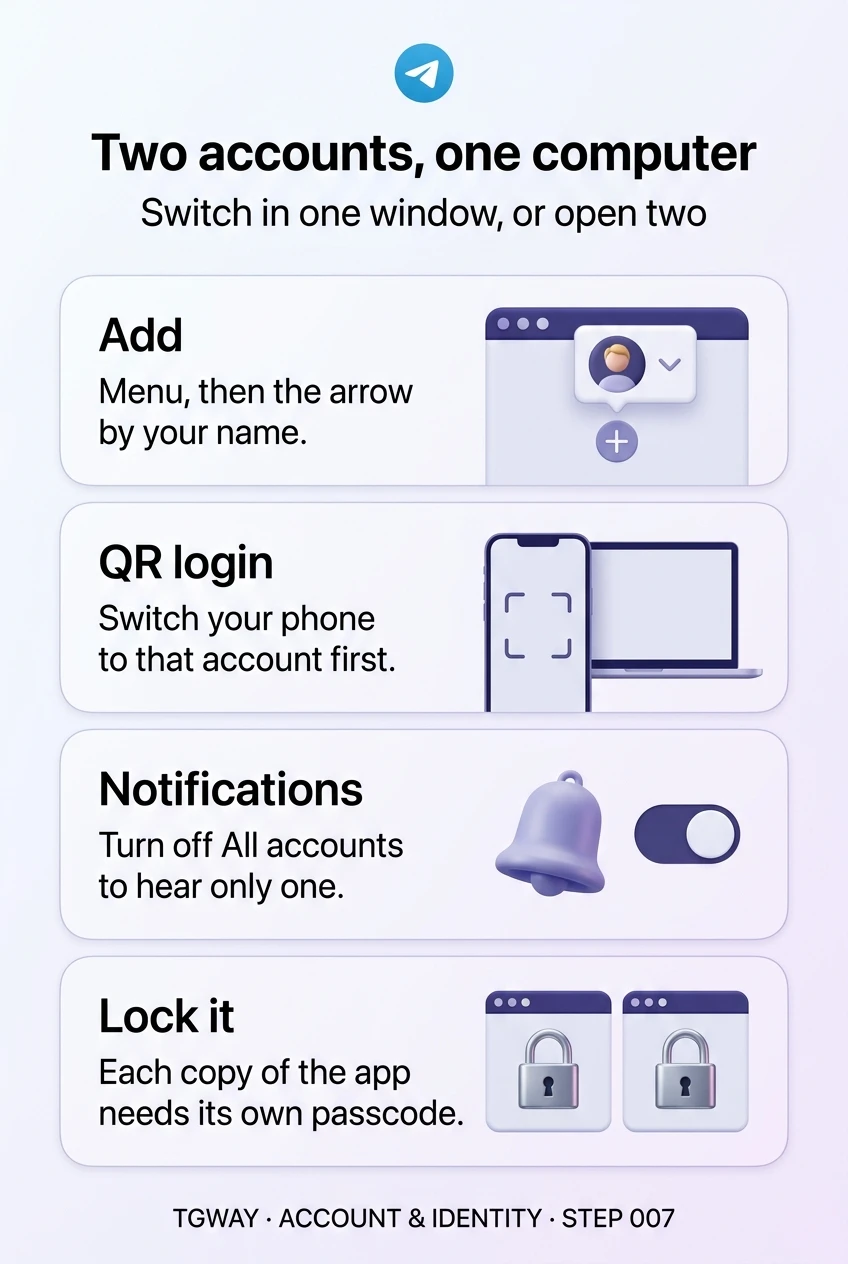
Two accounts, one computer
Adding a second account to Telegram Desktop or the macOS app, the QR code trap, one window or two, and the All accounts notification switch. Tap to open it at full resolution.