Keep Telegram Notifications Straight Across Accounts

Steps 006 and 007 put a second account on your phone and your computer. Adding it takes a minute. Living with it is the harder part, because every account now reaches you through the same banner, the same sound and the same app icon.
Almost every multi-account mistake is the same mistake: acting from the account you were not looking at. A reply to a client sent from your personal name. A private joke posted in a work group. A message you thought you had read, sitting unread in the other account for two days. None of this is a security problem, and none of it is fixed by a setting alone. It is fixed by making the accounts look, sound and behave differently enough that your eyes notice before your thumb does.
What you will be able to do after this step
- check_circle Tell, from a notification alone, which account it belongs to.
- check_circle Set up each account's notifications for how you actually use it.
- check_circle Build the small habits that stop replies going out from the wrong name.
notifications_active How notifications behave with more than one account
- Every signed-in account notifies by default. Adding an account adds all of its chats, groups and channels to the notifications you already get.
- Settings belong to the account. Notifications and Sounds, muted chats and exceptions are set separately inside each account. Muting a group in one account changes nothing in the other.
- A notification opens the account that received it. Tapping it switches you to that account and that chat. So does replying from the notification itself, which is exactly how people reply from an account they did not mean to use.
- On Telegram Desktop there is one extra switch. Settings > Notifications and Sounds > All accounts. Turn it off and you get notifications only from the account you are currently using, as Step 007 described.
One stream, or two you can tell apart
A work account and a personal one, both on the same phone.
notifications_active Left as they were
Both accounts use the same default sound, so every banner could be either.
Both profile photos are similar selfies; the account switcher looks like two copies of you.
Work groups buzz in the evening, so you mute the phone and miss a friend.
You reply from the banner and only notice the name after it is sent.
tune Set apart on purpose
The work account has its own sound; you know which one it is without looking.
Each account has a clearly different photo and a name that says what it is for.
Work groups are muted, with mentions and replies still allowed through.
You open the chat before replying, and glance at the name at the top.
The accounts did not change. What changed is how quickly you can tell them apart.
How should each account reach you?
The right setup depends on what the second account is for. Pick the one closest to yours.
Both accounts matter, every day
Keep notifications on for both, but give the work account its own sound in its own Notifications and Sounds settings, so the sound tells you which name you are about to answer as.
Mute the busy work groups and leave mentions and replies allowed. You still hear when someone needs you, not every time someone speaks.
Different sounds, so your ears can tell the accounts apart.
A work account you only want during working time
Muting every chat one by one is clumsy. It is simpler to switch off that account's notifications for private chats, groups and channels in its own Notifications and Sounds when you finish work, and back on in the morning, or to sign that account in on a work computer only.
If you do this, tell people when you answer. A short line in your bio or an away message is kinder than silence that looks like you are ignoring them.
Quiet on purpose works best when others know about it.
Personal on the phone, work on the computer
You do not have to sign every account in everywhere. Keeping the work account on the computer only, and the personal one on the phone, makes the wrong-account mistake almost impossible on each device.
On the computer, if both accounts are signed in, turning off All accounts keeps it to the one you are using. On the phone, simply do not add the work account at all.
The easiest account to keep apart is one that is not on that device.
An old or occasional account you keep for one reason
Notifications from an account you rarely open mostly get ignored, which trains you to ignore banners in general. Mute its categories and check it on a schedule instead, for example once a week.
Do not let it drift: an account that is signed in but forgotten still needs the security baseline from the Privacy & Security track, and still counts toward the three accounts one app can hold.
Check it on a schedule, and keep it secured anyway.
badge Making the accounts look different
Sounds help when the phone is in your pocket. When the screen is in front of you, sight does the work, and a few minutes of setup pays back every day.
- Profile photo. Use clearly different pictures, not two similar selfies. The photo appears in the account switcher, so it is the first thing you see when changing accounts.
- Name. A work account called "Sam · Studio" tells you, and your contacts, which one they are talking to.
- Name colour. Each account can use its own colour for its name and profile. A distinct colour on the account you use for customers is a small, constant reminder.
- Passcode and folders. If one account holds chats you would not want seen, give the app a passcode; folders inside each account keep its chats in order, but they never mix accounts.
touch_app Try it now — ten minutes
- Open each account's Notifications and Sounds Switch to the account first; you are changing only that one. Give the second account a different sound.
- Mute the loudest groups, keep mentions In the account that buzzes most, mute the busy groups and leave mentions and replies allowed.
- Change one profile photo Make the account switcher show two pictures you cannot confuse.
- Decide where each account lives Phone, computer, or both. Remove an account from a device where you never need it.
- Practise the glance For a week, open the chat before replying and read the name at the top. After that it becomes automatic.
Why nearly every multi-account mistake is acting from the account you are not looking at, and the per-account themes, sounds and passwords that make each one feel different.
help Questions
Can I see which account a notification is for before I open it?
Not reliably at a glance, which is why sounds and distinct photos matter. The dependable check is to open the chat and read the name and picture at the top before you type. Replying straight from a banner skips that check.
If I mute a chat in one account, is it muted in the other?
No. Each account keeps its own muted chats and notification settings, even when the same group is joined from both. You have to set each one separately.
Does the unread badge on the app icon count all accounts?
Usually, yes, which makes it a poor guide to what needs your attention. Muted chats can be left out of the count in Notifications and Sounds. If the badge is always high, the cure is muting and archiving, not staring at the number.
I sent a message from the wrong account. What now?
Delete it for everyone if it should not stand, then send it again from the right account, with a short line if the other person saw it. Deleting removes the message but not any notification they already got, so a quick "wrong account, sorry" is often the cleanest fix.
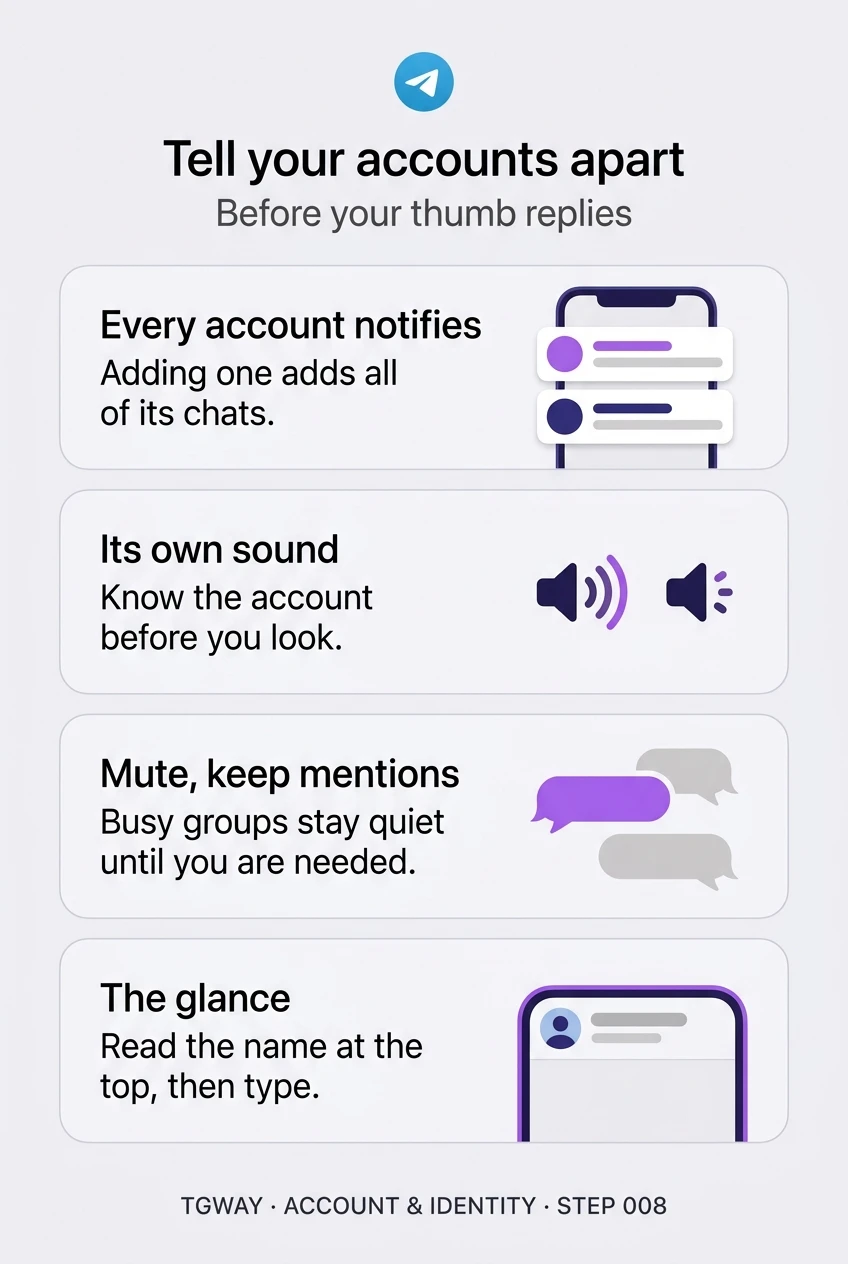
Tell your accounts apart
Why every added account adds all of its notifications, how a separate sound and a distinct photo let you tell them apart, and the glance that stops replies from the wrong name. Tap to open it at full resolution.