Connecting Telegram and a Wallet to Fragment

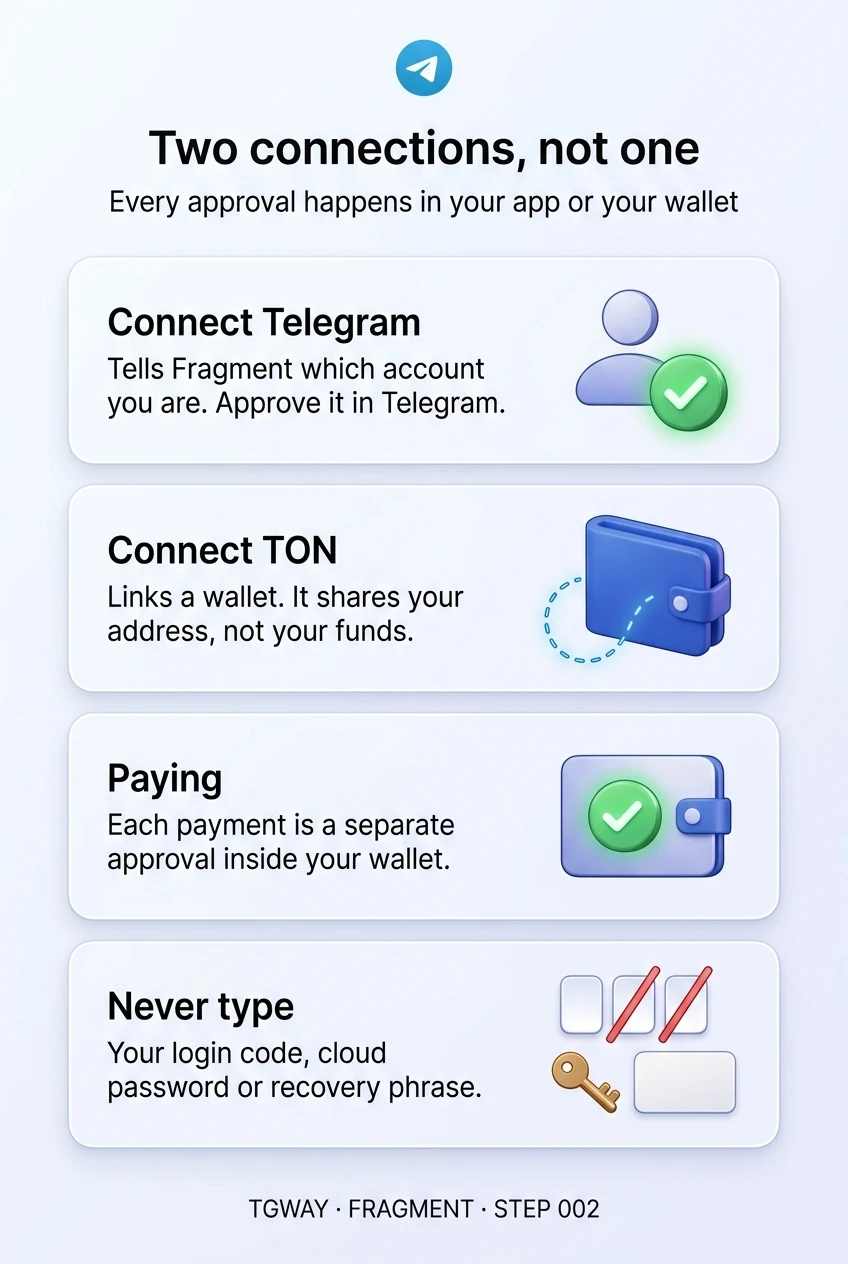
Fragment has two buttons that look like one sign-in: Connect Telegram and Connect TON. People press whichever appears first, see that something worked, and assume they are now "logged in". In fact they are two different links to two different things, and each one lets Fragment do something different.
Connecting Telegram tells Fragment which account you are. Connecting a wallet decides what you can pay with and where your items are held. You can do either without the other, and you should know which one you are doing before you approve anything. This step goes through both, and through the requests neither will ever make.
What you will be able to do after this step
- check_circle Explain what each connection gives Fragment.
- check_circle Approve each one in the right place, in the right order.
- check_circle Disconnect either one when you are finished.
call_split Two connections, side by side
| Connection | What it proves | Where you approve it | What it lets Fragment do |
|---|---|---|---|
| Connect Telegram | Which Telegram account you are | Inside your Telegram app | Assign a username or number to that account, and show your Telegram-linked items |
| Connect TON | Which wallet you control | Inside your wallet | See the wallet's address, and ask you to approve payments from it |
Neither connection moves anything on its own. The Telegram connection cannot read your chats, and the wallet connection cannot spend. Spending always needs a separate approval in your wallet, one payment at a time.
how_to_reg Connecting Telegram
- Start from fragment.com, typed yourself Not from a link in a message. Check the address before you press anything.
- Choose Connect Telegram Fragment uses Telegram's standard login. You are asked for your phone number on a Telegram login page, and a confirmation request is sent to your Telegram app.
- Approve the request inside Telegram The request arrives in the app you are already signed in to, naming the site that asked. Approve it only if you just pressed the button yourself.
- Check the connection later Websites you have logged in to with Telegram are listed in your privacy settings, and you can end any of them there.
The rule that settles almost every doubt: a genuine Telegram login asks you to approve inside the app; it never asks you to type a login code into a website. A page that wants the code sent to your Telegram is trying to take the account, not connect it.
account_balance_wallet Connecting a wallet
- Choose Connect TON Fragment offers a list of wallets. On a computer it may show a code to scan with a wallet on your phone.
- Pick the wallet you mean to use If you have more than one, choose deliberately. A wallet holding only what you need for this purchase limits what any later mistake can cost.
- Approve the connection in the wallet The wallet shows which site is asking. A connection shares your address, nothing more. Check the site name before approving.
- Read every later request separately When you buy or bid, the wallet asks again, this time for a payment. That screen, not the web page, is where the amount and destination are confirmed.
What a real connection asks for, and what a fake one does
Copies of Fragment exist to collect exactly the things on the right.
verified_user The real site asks you to
gpp_bad A fake site asks you to
Every legitimate approval happens in your Telegram app or in your wallet, never in a box on the web page. If the page itself wants a secret, close it.
format_list_numbered Which to connect first
If you are only looking, connect nothing. Every section of the site can be browsed while signed out, including prices and past sales, and there is no reason to hand over either connection just to read.
If you intend to buy, connect the wallet when you are ready to pay, not before. That keeps the moment of connecting close to the moment of approving, so you are paying attention to both. Connect Telegram when an action actually needs your account, such as assigning a purchased username to it or signing in with an anonymous number.
And if a page pushes you to connect everything immediately, before you have chosen anything, treat that urgency as a warning. The real site does not need either connection to show you what is for sale.
devices On a computer or on a phone
On a computer, the wallet connection usually shows a code that you scan with the wallet app on your phone, and later payment approvals arrive on that phone. That split is useful: the page is on one screen, and the decision is on another, where the site cannot draw over it.
On a phone, the site hands you over to the wallet app and back. Watch which app you are in when you approve. The approval should always appear in the wallet itself, with the wallet's own design, and never as a box inside the web page.
link_off Disconnecting when you are done
Both connections stay in place after you close the tab. That is convenient if you use Fragment often and unnecessary if you came for one purchase.
To end the Telegram connection, find the list of websites you logged in to with Telegram in your privacy settings and end the one for Fragment. To end the wallet connection, use the disconnect option on the site, or remove Fragment from the list of connected apps in your wallet. Step 023 of the TON Wallet track covers reviewing wallet connections in general.
Disconnecting does not undo anything you bought, and it does not affect items already held by your wallet or assigned to your account.
Why the approval question appearing inside the app is the only reliable test, and what a site receives when you approve it.
help Questions
Do I need both connections?
Only for things that involve both, such as assigning a username you bought to your Telegram account. Browsing needs neither, and some actions need only one. Connect what the task needs.
Can Fragment read my Telegram messages after I connect?
No. A Telegram login lets a site know which account you are. It does not give access to your chats, contacts or messages.
Can a connected wallet be emptied by the site?
Not by the connection itself. Money moves only when you approve a specific payment in your wallet. That approval screen is the one to read carefully, every time.
I approved a login request I did not start. What now?
End that website session from your Telegram privacy settings straight away, then review your active sessions and make sure Two-Step Verification is on. The Privacy & Security track covers what to do after a suspected takeover.
Two connections, not one
The two separate connections Fragment asks for, what each one shares, and the three things you should never type into any page. Tap to open it at full resolution.