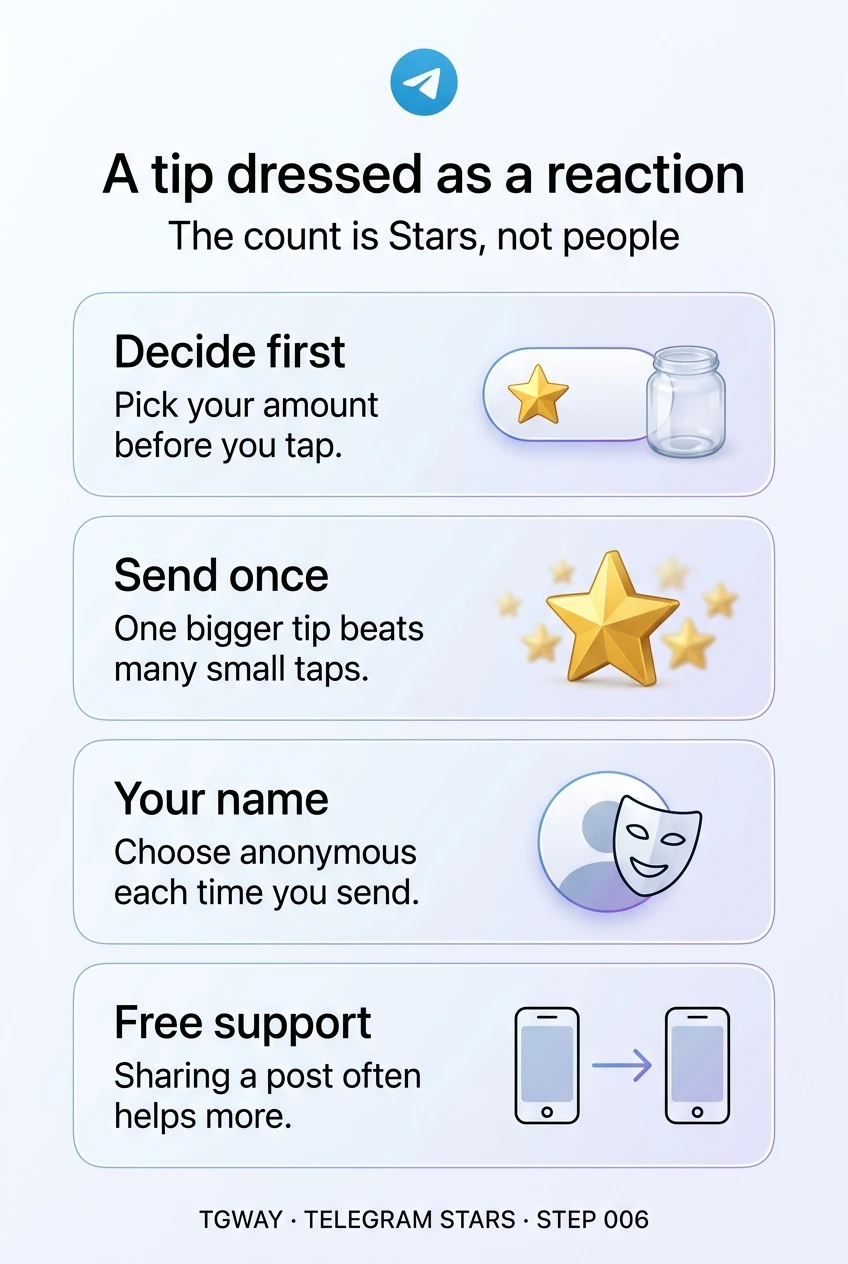
Tipping a Creator with Telegram Star Reactions

Some channels show a reaction with a star on it next to the usual hearts and thumbs. It looks like one more way to react. It is not. Every time you send it, Stars leave your balance and go to the channel. It is a tip, dressed as a reaction.
That disguise changes two things. For you, a payment becomes as easy as a tap, which is the point and also the risk. For everyone reading the post, the number beside the star counts Stars, not people: one generous reader can move it further than a hundred ordinary ones. This step covers what actually happens when you send one, how to decide the amount before you start, and when a tip is the right way to support someone at all.
What you will be able to do after this step
- check_circle Say what a Star reaction sends, to whom, and who can see it.
- check_circle Choose between tipping, subscribing, paying for a post or simply sharing.
- check_circle Read the star count under a post for what it really measures.
paid What happens when you send one
- Stars leave your balance. You choose how many to send. They go to the channel, and like other Star spending they are generally final, so there is no taking a tip back.
- The count rises by the amount. Ten Stars from you add ten to the number under the post, the same as ten readers sending one each.
- Your name may be shown. The people who sent the most can appear beside the post as its top supporters. Sending anonymously is a choice you make when you send, each time, not a setting that remembers you.
- The Stars arrive either way. Anonymous hides your name from other readers beside the post. The tip itself still reaches the channel.
None of this is hidden, but all of it happens in a second. That is why the decision belongs before you open the control, not while the animation plays.
Is a tip the right gesture?
A Star reaction is one of several ways to support a channel you value, and not always the best. Pick what you actually want to do.
A Star reaction: thanks, attached to one post
The best use of a tip is the post that saved you time, answered the question you had, or made your day better, from someone who gives most of their work away for free. It says "this one", which a subscription cannot.
Decide the amount first, the way you would with cash in a tip jar, and send it once. The design makes it satisfying to keep tapping; the balance going down is real.
Tip a post you are grateful for, with an amount you chose beforehand.
A subscription: steady support for the whole channel
If you value the channel as a whole rather than one post, a Star subscription, where the channel offers one, gives the creator something they can plan around. Step 005 covers how subscriptions renew and how to cancel.
A subscription is also easier on you: one monthly decision instead of many small ones, and a clear line in your Stars history rather than a scatter of tips.
If you would tip every week, a subscription says it better.
A paid post: paying for something specific
Some channels lock particular posts behind a Star price. Unlocking one pays for that piece and keeps access to it in your history, even if the post is later deleted. It is buying, not thanking.
Step 004 explains how to judge a post you have not seen. A tip on the free posts that convinced you is a fine way to say the free work is what you value.
Unlock to get something; tip to give thanks.
savings Decide the amount before you tap
Stars are a prepaid balance, as Step 001 explained, and prepaid money feels smaller than it is. A small per-post amount across several posts a week adds up to a real monthly figure. Three habits keep it where you meant it to be:
- Pick a number and stick to it. One amount you are comfortable with for "this was great", decided once, not per post.
- Send once, not repeatedly. If you want to give more, choose a bigger amount in one go instead of tapping again and again.
- Look at your Stars history now and then. The balance screen lists where your Stars went. It is the easiest way to notice when tipping has quietly become a habit.
quiz Reading the stars
A post shows 800 next to the star reaction and 40 next to the heart. What can you conclude?
The heart counts people; the star counts Stars. A single reader sending 800 Stars produces the same number as 800 readers sending one. To judge whether a post landed, look at free reactions, forwards and comments, not the paid count.
You want to support a channel without other readers seeing your name. What do you do?
Anonymity is decided per reaction, at the moment of sending. Tips are not anonymous by default: top supporters can appear beside the post. Check the option before you confirm, not after.
A channel posts "Only readers who send Stars will stay in our community". What does that tell you?
Telegram does not require anyone to tip to read or stay in a channel. Tips are voluntary by design. A channel that uses pressure or threats to get them is telling you how it treats its readers.
task_alt
touch_app Try it now — five minutes
- Choose your tip amount One number of Stars that means "this was great" to you. Write it down if it helps.
- Find a post you are genuinely grateful for If the channel offers a Star reaction, open it, set your amount, decide whether your name is shown, and send it once.
- Check where it went Open your Stars balance and find the tip in your history.
- Forward one good post to someone Free support, and often the kind a small channel needs most.
What paid reactions do to the numbers under a post, why the top-supporters list suits a fan audience and harms a group of peers, and what a channel owner should weigh before turning them on.
help Questions
Can I get Stars back if I tipped by mistake?
Generally not. Stars spending is treated as final, and a tip goes straight to the channel. That is why the amount is worth deciding before you open the control. Step 010 of this track covers the narrow cases where refunds are possible.
Does the creator get the full amount I sent?
The Stars are credited to the channel. Turning Stars into money is a separate step on the creator's side, with its own conditions and waiting period, so what they eventually receive in cash is not a simple one-to-one of what you sent.
Why do I not see a Star reaction on every channel?
The channel's admins decide whether to offer it. Many channels leave it off on purpose, because paid reactions change what the reaction count means. Not seeing one is not a sign that anything is wrong.
Is tipping in Stars the same as sending a gift?
No. A tip goes to a channel for a post. A gift goes to a person and can be displayed on their profile, which gives it an audience. Step 007 covers when a gift is the right gesture.
A tip dressed as a reaction
What a Star reaction sends and who sees it, deciding the amount before you tap, and the free ways to support a channel. Tap to open it at full resolution.