Setting Up a TON Wallet and Its Recovery Phrase

Creating a self-custody wallet takes a few minutes and a few taps. Almost all of it is routine: install the app, choose a passcode, look at your new address. One screen is not routine at all. Partway through, the app shows you a list of words, usually 24 on TON wallets, and asks you to write them down.
Step 002 explained the trade: in a self-custody wallet nobody else holds the key, so nobody else can freeze it and nobody else can recover it. Those words are the key. Whoever has them has the wallet, from any device, forever; if you lose them and your phone, the wallet is gone. This step walks through the setup with that one moment at the centre, so that the few minutes you spend on it are the right few minutes.
What you will be able to do after this step
- check_circle Prepare the time, place and materials before the recovery phrase appears.
- check_circle Write the phrase down correctly, in order, with nobody else seeing it.
- check_circle Tell the recovery phrase apart from the app passcode and your Telegram password.
checklist Before you tap Create
- Get the app from the right place. Install wallet apps from your phone's official app store or the wallet maker's own website, typed in yourself. A wallet app sent to you as a file or a link in a chat can be a copy built to steal the words you are about to write.
- Choose the moment. Ten quiet minutes, alone. Not on a video call, not while sharing your screen, not on a bus, not with a "helper" watching.
- Have paper and a pen ready. The phrase goes on paper, by hand. Where to keep that paper afterwards is Step 007; for now, it only needs to exist.
- Know what you are creating. If you already use the wallet in Telegram's menu, part of it may be custodial, with no phrase at all. This step is about the self-custody kind, where the phrase is shown to you once and is yours to keep.
format_list_numbered The setup, step by step
Wallet apps word their screens differently, but the order is nearly always the same.
- Choose Create a new wallet Not "import" or "restore": those are for a wallet you already have the words for.
- Set an app passcode, and biometrics if you like This locks the app on this phone. It is not the key to the wallet; the phrase is.
- The recovery phrase appears A numbered list of words. Write each one on paper, with its number, in the same order, spelled exactly as shown.
- Check your copy against the screen Word by word, before you move on. A single wrong or missing word can make the whole list useless.
- Confirm the words the app asks for Many apps ask for a few words by their number to prove you wrote them down. This checks that you have a copy, not that the copy is safe.
- Your wallet and its address are ready The address is public and safe to share, as Step 005 explained. Nothing you do from here needs the phrase again, unless you move to a new device.
What to do while the words are on screen
The phrase is safest in the minute it appears, and most mistakes happen in the minutes around it. Pick a moment.
Make sure nothing else can see the screen
Stop any screen sharing or recording, close video calls, and check that you are not being watched by a person or a camera. Some phones and apps block screenshots on this screen; do not rely on it, and do not try to get around it.
If anyone is guiding you through the setup, by message or on a call, stop here. Nobody who is helping you honestly needs to see or hear these words, and "show me the screen so I can check" is how phrases are stolen.
The right number of people looking at this screen is one.
Write by hand, in order, with the numbers
Paper and pen, not a photo, a screenshot, a note app, an email to yourself or a message in Saved Messages. Every digital copy lives somewhere you do not fully control: a cloud backup, a synced device, a shared computer.
Write clearly and number each word. Words on these lists come from a fixed dictionary, so if one looks misspelled when you read it back, check it against the screen now rather than guess later.
The phrase is shown to you so you can copy it once, on paper.
Check the copy, then put it away
Read your paper back against the screen one more time, then finish the setup. Most wallet apps let you view the phrase again later from their settings, behind the app passcode. That is for checking your copy, not for making a new digital one.
Before you send any amount you would miss, make sure the paper exists, is readable and is somewhere you would find it in a year. Step 007 covers where that should be.
Do not fund a wallet whose phrase you have not checked.
key Three secrets that are easy to mix up
After setup you have several things that feel like passwords. They protect different things, and only one of them is the wallet itself.
| Secret | What it unlocks | If you lose it |
|---|---|---|
| Recovery phrase | The wallet itself, on any device, for anyone who has it | If the phone is also gone, the wallet cannot be recovered by anyone |
| Wallet app passcode | The app on this one phone | Reinstall the app and restore the wallet with the recovery phrase |
| Telegram cloud password | Your Telegram account on a new device | A Telegram recovery process; it has nothing to do with a self-custody wallet |
The most expensive mistake is treating the first row like the other two, as something with a reset button. It has none. That is exactly why nobody can take it away from you, and exactly why nobody can give it back.
gpp_bad Who will ask you for the words
Once you have a phrase, people will try to get it. They do not ask directly. They say they are support and need to "verify" or "sync" your wallet, that an airdrop needs you to "restore" it on their site, that a bug requires you to "re-enter" it. Every one of these is theft.
The rule has no exceptions, which makes it easy to follow even when you are tired or rushed: the recovery phrase is typed only into a wallet app you installed yourself, to restore your own wallet. Nowhere else, for no one.
touch_app Try it now — ten minutes, no coins needed
- Decide whether you need this at all If you only buy things inside Telegram, Stars are enough, as Step 001 explained. Create a wallet when you have a reason for one.
- Prepare before you install Paper, a pen, ten quiet minutes, no screen sharing, and the app from your official store.
- Create the wallet and write the phrase In order, numbered, by hand. Check it word by word against the screen.
- Leave it empty until the paper is safe Nothing goes into the wallet until Step 007 is done.
The difference between holding a key yourself and trusting a company with it, why every transfer is final, and why "always send a small amount first" is the habit that saves the most money.
help Questions
Can I just take a screenshot of the phrase?
You should not. Photos are backed up to cloud accounts, synced to other devices, and read by apps with gallery access. A screenshot turns a key only you hold into a file in several places you do not control. Paper is less convenient on purpose.
What if I wrote a word down wrong?
While the wallet is still empty and on your phone, view the phrase again in the app's settings and correct your paper. If you only discover the mistake after losing the phone, the phrase may not work, which is why checking before you add anything matters.
Does Telegram keep a copy of my recovery phrase?
No. In a self-custody wallet, the phrase is created on your device and is not held by Telegram or by the wallet company. That is what self-custody means, and why nobody can restore it for you.
Can I use the same phrase in another wallet app?
Usually yes: most TON wallet apps can restore a wallet from its words, which is how you move to a new phone or app. Only ever do this in an app you installed yourself from an official source, and only to restore your own wallet.
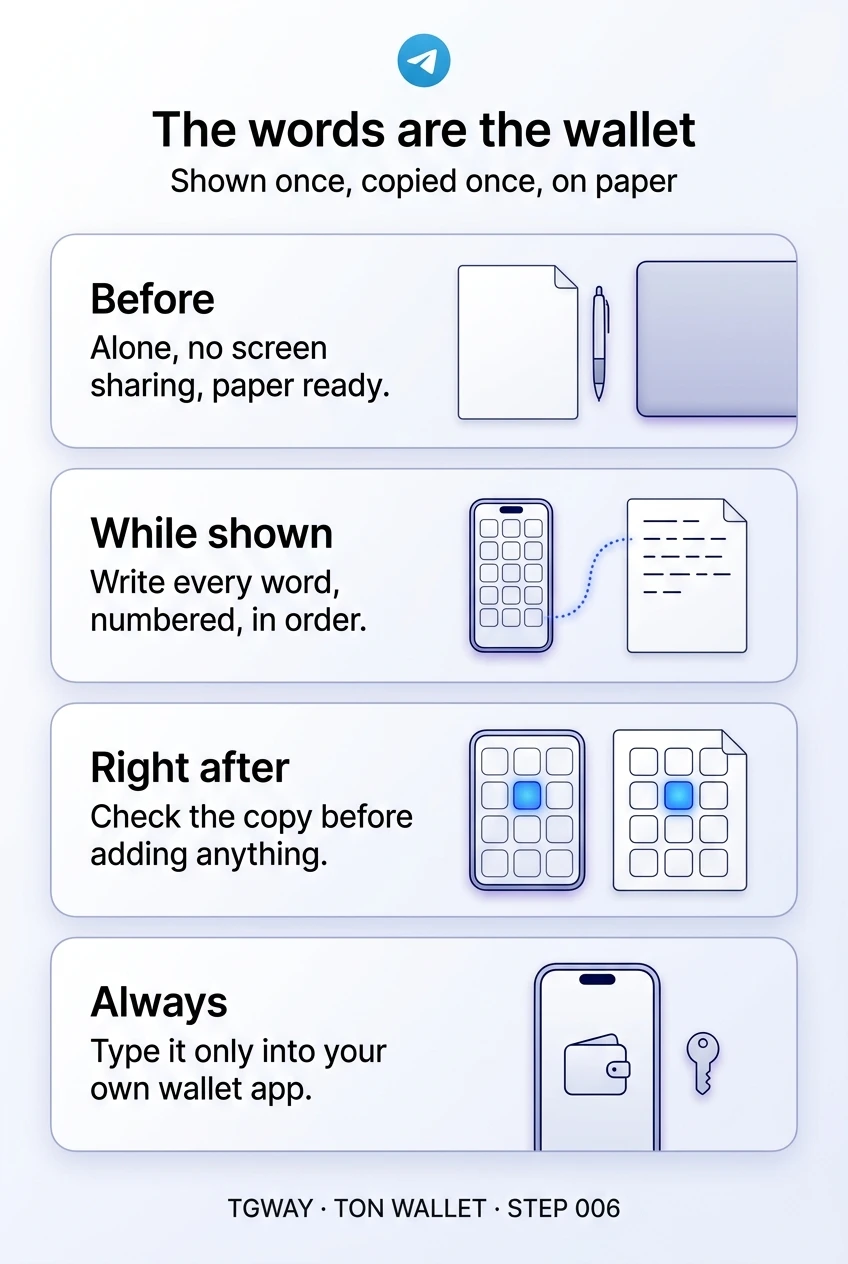
The words are the wallet
Preparing before the recovery phrase appears, copying it once on paper, checking it, and never typing it anywhere but your own wallet app. Tap to open it at full resolution.